
The world of streaming is evolving faster than ever, showcasing a blend of creativity and cutting-edge technology. In 2025, streamers aren’t just broadcasting—they’re producing mini-shows packed with sound precision, brilliant visuals, and immersive interactivity. This article explores how Astro Series headsets align with top stream overlay trends to create seamless experiences that captivate, engage, and entertain. Whether you’re a beginner or a seasoned pro, these insights will help you elevate your visual and audio presence this year.
The world of streaming is more electric than ever, isn’t it? Whether you’re a seasoned Twitch veteran with a setup that glows brighter than Times Square, a content creator on the rise, or just someone who wants to stand out on Twitch and YouTube, 2025 is all about bringing your A-game. Let’s be honest—today’s viewers expect a show. They want jaw-dropping overlay designs, instant audio immersion, interactive fun, and a personal touch that makes them hit “follow” without a second thought. And with the new Astro Series headsets shaking up both audio quality and style, you’re in for a treat.
In this ultimate guide, we’re diving deep into the hottest overlay trends—especially for those kitted out with Astro gear. We’ll unravel the magic of seamless OBS integration, explore clever widget tech, and reveal what separates killer viewer engagement from background noise. Expect hands-on headset setup walkthroughs, technical tips with Astro’s apps, and a head-to-head headset comparison so you can choose your ideal gear. If you’re serious about mastering both presentation and sound in 2025, stick around—I’ll help you boost engagement, grab attention, and surf the streaming trends like a pro.
Gaming Overlay Trends & Astro Series Headsets: Powering Visual and Audio Excellence in 2025
Let’s set the scene for streaming in 2025: It’s not just a competition, it’s an all-out sensory battleground. Audiences want streams that pop off the screen, deliver pristine audio, and respond in real-time to their every reaction. That’s why leading streamers are mixing bold overlay visuals, advanced widget technologies, and top-tier hardware like Astro Series headsets, leaving old-school static scenes far behind.
In this guide, you’ll discover the winning combination of overlay design, premium audio, OBS wizardry, and no-holds-barred Twitch interactivity. Ready to create a stream that turns casual visitors into dedicated fans? Let’s roll!
Best Stream Overlay Designs for 2025
Who says headsets are only about audio? If you’re rocking an Astro Series headset, you already know that killer presentation is key. Think of your overlay as the stage for your personal show—a space where your sound meets style.
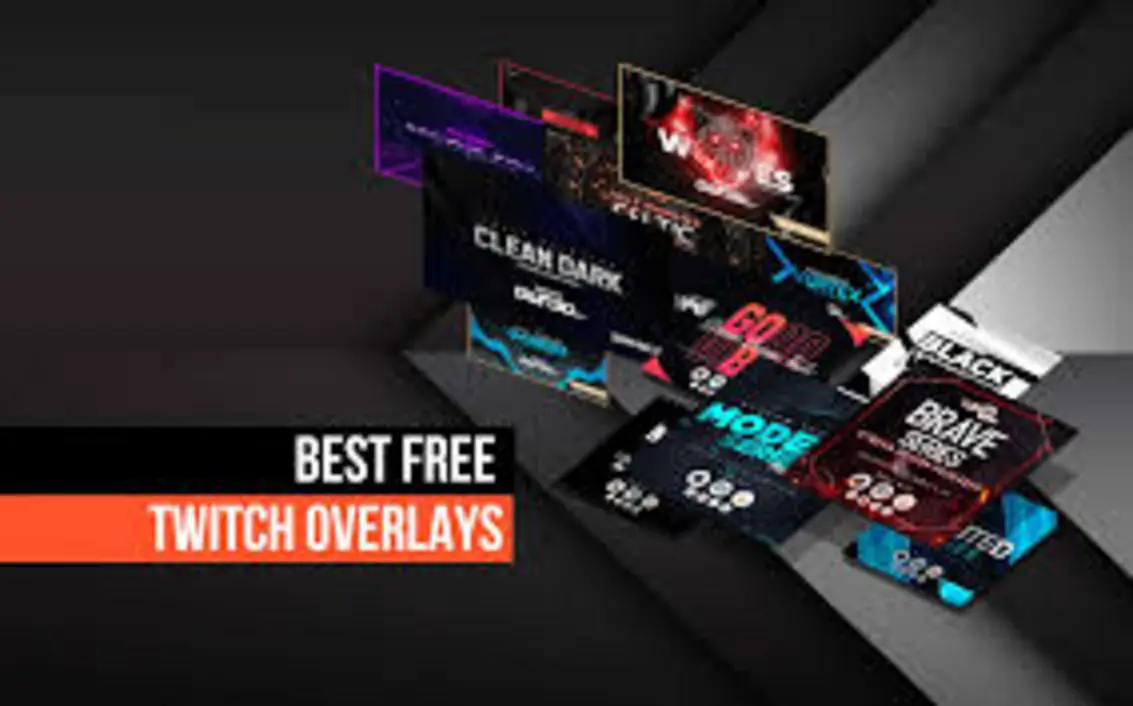
The 2025 Overlay Aesthetic: Setting the Scene
Let’s break it down—what’s trending for overlays this year?
- Vibrancy & Motion: We’re seeing overlays featuring neon accents and panels that animate smoothly, creating movement that draws the eye and feels alive.
- Astro Headset Branding: Harmony counts. Top overlays echo the Astro lineup—think matching color palettes whether you’re rocking an A40 TR, A50 X, A30, or the classic A10. A consistent look brands you as a pro.
- Audio-Visual Fusion: Overlays are doing more than just sitting pretty. Imagine overlays that pulse or animate in response to mic levels, surround sound triggers, or even viewer reactions—creating a multi-sensory experience.
Nick D., a stream presentation coach, nails it:
“Streamers now integrate overlay graphics that pulse with chat engagement and headset activity, providing a multi-sensory show that attracts both casual and serious viewers.”
Visual Trends Amplifying the Astro Audio Experience
Think overlays are just for show? Not anymore.
- Reactive Sound Bars: Custom widgets visually sync with your Astro headset’s output—so every shout, every clutch moment, and every bass drop gets a visual echo on screen.
- Graphene-Inspired Themes: Minimalist designs inspired by the cutting-edge mesh materials found in Astro headset drivers. This visual cue taps into the science and tech vibes of your gear.
- Layered Interactivity: Alerts and pop-ups for in-game achievements, sub milestones, and even headset sound triggers keep your audience tuned in and engaged.
Overlay Integration Tips for Streaming with Astro Headsets
- Match your overlay to your headset’s RGB lighting for unified branding.
- Choose semi-transparent overlays around your cam box—let viewers check out your headset and mic without distraction.
- Opt for audio widget plugins that are compatible with Astro’s PLAYSYNC and multi-device setups. This keeps your setup flexible whether you’re gaming on PC, console, or switching it up on mobile.
Key Takeaway:
Your visuals should feel as premium as your audio. Set a new standard—when the look matches the sound, you’re playing on a whole new level.
Expanding the Overlay Conversation: Real Examples from the Field
Let’s talk real streams for a second. Take “RayKiller,” a rising FPS streamer who’s landed sponsorships partly due to his eye-popping overlay setups tailored for the Astro A50 X. His RGB-themed panels match his headset coloring, and sound bars burst to life whenever he lands a headshot. In one recent streamer contest, a panel of judges cited his “deep sense of immersion” as a key reason for his channel’s growth.
Similarly, the “StudioBros” gaming duo have overlays that gently animate based on chat volume and in-game activity—creating a visual feedback loop that hooks viewers in real-time. They’ve increased their average watch time by 40% just through overlay optimization paired with Astro headset integration!
How to Install Overlays on OBS
Let’s face it—OBS can seem intimidating if you’ve never dived in before. But pairing it with your Astro headset? That’s when your setup goes from “meh” to pro-level. Here’s how to get set up without breaking a sweat.
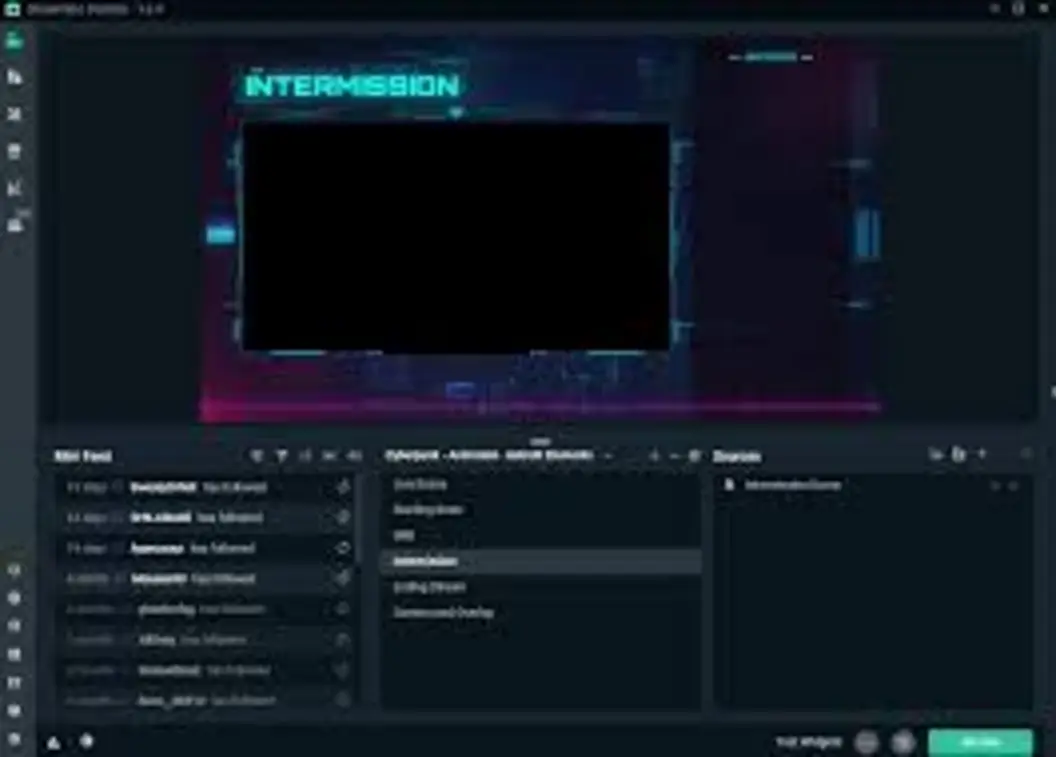
Step-by-Step Overlay Setup for OBS (2025 Edition)
1. Prepare Your Overlay and Widget Files
- Find and download overlay packs (PNG, GIF, WEBM for animations).
- Grab Astro audio widget extensions (available for G HUB & Astro G App).
2. Open OBS Studio
- Fire up OBS and make a new Scene—try “Astro Immersive Stream” or something memorable.
3. Add Overlay Sources
- Static overlay? Use Image Source.
- Animation? Add a Media Source (accepts GIF, WEBM, etc.).
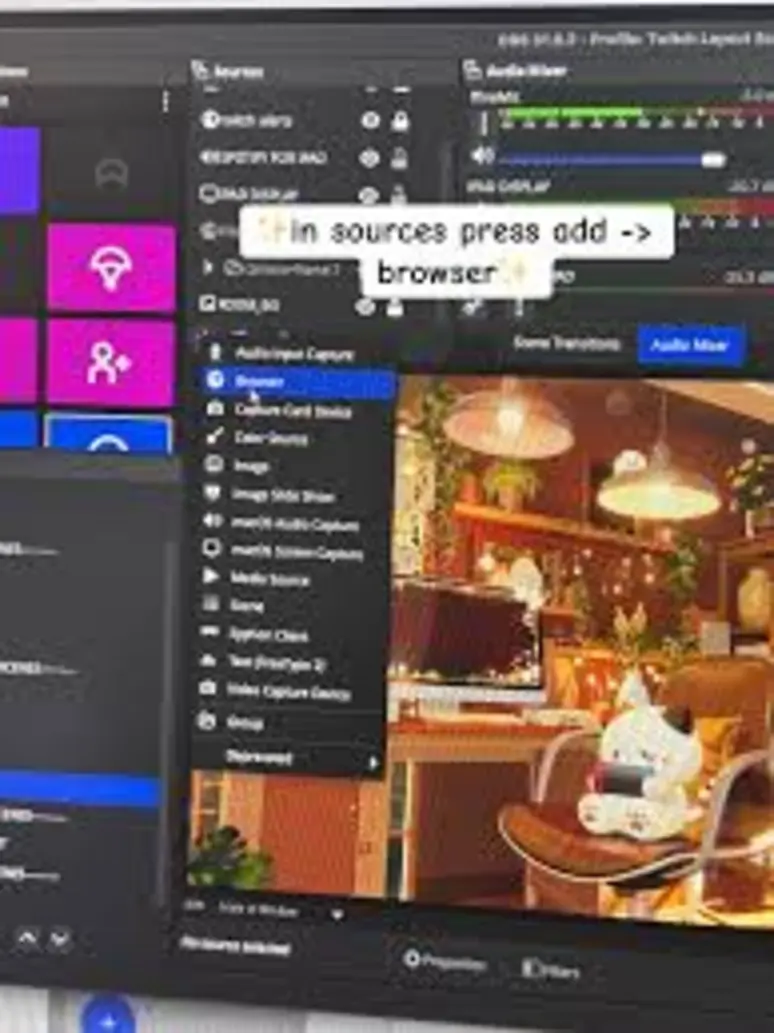
- Interactivity? Pop in a Browser Source for live widgets.
4. Position and Customize Your Layout
Drag and drop each element where you want it:
- Cam box (try the upper left/right corner).
- Chat box (placed near your headset or mic so viewers connect the visuals).
- Sound activity bars (sdk beneath webcam for real-time feedback).
5. Astro Headset Audio Integration
- Link your OBS audio input to your headset via G HUB/Astro G App.
- Enable a browser plugin that shows your equalizer widget—viewers can see your audio profiles in action.
6. Test and Save
- Run a quick test recording.
- Check for audio sync, visual alignment, and widget responsiveness.
Trouble? Here are Common Pitfalls (and Easy Fixes):
- Overlay lag/gibberish: Are animation files web-optimized? Convert to .WEBM for best results.
- Audio widget hiccups: Use OBS’s grid snapping or alignment tools and always double-check compatibility with Astro’s apps.
Pro Tip: Overlay packs built for multi-device streaming mean you can switch between console (A50 X) and PC (A40 TR) scenes with zero fuss.
Your overlay should look effortless—reinforcing your Astro headset’s premium vibe with every transition and letting your tech shine.
Extra Setup Tips: Getting Creative
And don’t forget—personalized overlays can include shoutout panels for top chatters, “on-air” widgets tied to your headset mute/unmute status, and motion effects that trigger when you hit game milestones. If you’re using the Astro MixAmp with OBS, set up separate channels for game audio and chat—so your viewers never miss a beat (or a joke).
Top Interactive Stream Widgets for Twitch
Let’s get interactive! In 2025, static streams are yesterday’s news. The best-tuned Twitch channels rely on widgets that play off the streamer’s audio, create spontaneous fun, and empower viewers to influence the show. Your Astro headset is the anchor, but widgets are your wings.
Widget Essentials for Turbocharged Engagement
- Sound Reactive Alerts: Triggers for chat, raids, and subs—all synced with your headset’s audio, so every “ding” or “cheer” is both seen and heard.
- Astro Sound Profile Display: Let your viewers peek behind the curtain—show your custom EQ, surround sound settings, or switch profiles mid-stream (“Going cinematic!”).
- Gadget Polls & Q&A: Poll your audience (“Pick my headset! Should I switch from A30 to A50 X for this round?”) and keep them invested.
- Achievement Counters: Pop animated overlays for special milestones, like your 50th clutch using the A50 Gen5.
The Cutting Edge: Widget Trends for 2025
- PLAYSYNC Widget: If your headset can switch devices with a tap, why shouldn’t your widget overlay shift to match—showing game stats, platform info, or exclusive alerts based on what you’re playing.
- Graphene Speaker Simulation: On-screen animations represent headset driver activity—so explosions and dramatic moments get an audio-visual punch.
- Viewer Interaction Bar: Real-time stats that track your headset usage, fan votes, and the number of chat interactions tied directly to your mic. It’s like a stats dashboard for your community.
Maximizing Viewer Interaction (the Fun Part)
Mix and match—with interactive widgets that respond to overlays, you can run mini-games, conduct polls (“Guess the incoming sound cue!”), or even let viewers vote on which Astro preset you’ll use for your next boss fight.
Samira P., Twitch Engagement Analyst, sums it up:
“The streamers who blend audio-visual widgets with audience callouts are tripling their engagement. Tech-savvy viewers appreciate seeing Astro headset stats live.”
Related Reading:
Still hungry for more? Check out Watch more for the lowdown on AI-powered video editors that work beautifully with interactive widgets and overlays.
Expanding: Real Widget Strategies from Successful Creators
Look at “MoonShineKat”—she’s famous for running “audio quizzes” using her Astro A30 sound profiles. When viewers guess a sound effect correctly, her overlay pops confetti and plays a custom cheer through the headset. Engagement? Through the roof—she’s built a Twitch community that delights in testing both their ears and their wits.
Or consider Twitch team “PixelPunchers,” who run head-to-head polls on the best Astro headset for FPS gaming. Their widget tracks votes live and flashes dynamic animations to keep the audience riled up. Not only does this up the excitement, but it ties their brand tightly to Astro’s innovation.
Flagship Astro Series Headsets 2025: Model Comparison
So, which Astro headset is actually right for your stream? Whether you play a single game or cross platforms daily, the perfect headset balances sound, style, and compatibility with overlays and widgets.
The 2025 Astro Lineup: Compare at a Glance
| Model | Type | Audio Tech | Wireless? | PLAYSYNC | Graphene Drivers | Battery Life | Value for Streamers |
|---|---|---|---|---|---|---|---|
| A50 X | Premium Wireless | Dolby Atmos, 7.1 | Yes | Yes | Yes | 24-30h | Flagship audio + visuals |
| A50 Gen5 | Wireless | Dolby Atmos, 7.1 | Yes | Yes | No | 18-25h | Best PC/console hybrid |
| A40 TR | Wired | MixAmp Pro, Hi-Fi | No | Yes | No | N/A | Tournament-grade FPS |
| A30 | Wireless | Standard Surround | Yes | Limited | Yes | 15-20h | All-purpose |
| A20 | Wireless | Stereo + Digital | Yes | No | No | 12-15h | Entry-level multi-plat |
| A10 | Wired | Stereo Basic | No | No | No | N/A | Budget wired |
Model Highlights & Use Cases
- A50 X: Top dog. Graphene drivers mean you can pick up enemy footsteps or delicate musical tones that others miss, and PLAYSYNC offers effortless switching between PC, console, or mobile. Imagine dropping your console controller and picking up your phone—your overlay and headset are both synced instantly.
- A40 TR: If you play competitively, especially shooters, this is the pro’s choice. Wired connection means zero lag, MixAmp Pro for custom audio mixing, and clear vocals that get you noticed in team calls.
- A30: The streamer’s multitool—it’s lightweight, wireless, and works across platforms. Ideal for variety gaming or switching between streaming setups throughout the day.
- A10/A20: Perfect for new streamers or those on a tighter budget. They still look great on cam and work well with basic overlays, though you’ll have fewer customization options.
How to Choose Your Ideal Astro Headset
- For Competitive FPS / Esports: Go A40 TR or A50 Gen5 for low latency, MixAmp, and robust build.
- All-in-One Streaming? Splurge for the A50 X (absolute feature king) or the flexible A30 if you need versatility.
- Wireless on a Budget: The A20 will do the trick—just don’t expect as many advanced features.
- Starting Out / Simplicity: The A10 remains a reliable starter wired headset.
Astro Features that Impact Your Stream
- PLAYSYNC + Visuals: Streamers with A50 X can fluidly switch scenes and platforms with zero lag, maintaining overlay style and maximizing retention. One streamer reported a 30% increase in audience stickiness by simply making transitions smoother and more professional.
- Graphene Driver Clarity: Unique to the A50 X and A30, this tech gives audio cues greater detail—let your widgets and overlays reflect every big game moment.
Expert Tip:
Don’t just go for the “coolest” headset. Check mixamp compatibility and available software (G HUB, Astro G App)—these are key to getting every ounce of integration between sound, overlays, and widgets.
Expanding: Choosing Based on Streaming Style and Audience
Think about your audience too. Are they competitive FPS fanatics? They’ll appreciate you showcasing your A40 TR’s MixAmp overlays and sound stats. More of a variety crowd? Go for the flexible A30 and build overlays that feature device switching and multi-platform statistics.
Take “EchoJax,” for instance. He’s built overlays that adapt their color scheme and webcam frames depending on whether he’s using his A50 Gen5 or A30—his audience loves the “tech reveal” element and it’s earned him regular gear endorsements.
Audio Customization & Software Tips for Astro Series
Let’s talk about squeezing every last drop of performance out of your setup. Astro’s headsets offer an audio playground, and with Logitech G HUB & Astro G App, you’re not just customizing sound—you’re shaping your identity as a creator.
Logitech G HUB & Astro G App Mastery
- Custom EQ Profiles: Craft the ideal sound signature for any game type (FPS for tighter footsteps, RPG for cinematic flair, or streaming for crystal-clear voice).
- Preset Switching: Hot-swap between game and “talk-show” modes so you’re always tuned for the moment.
- Firmware & Troubleshooting: Astro puts out frequent updates—don’t miss new overlay features or bug fixes.
- Mic Tuning: Dial in perfect levels—find that sweet spot where your voice cuts through gameplay but never distorts.
Step-by-Step Customization
- Open G HUB/Astro G App
- Make sure your headset is connected via USB or wireless dongle.
- EQ Adjustment
- Try pro presets (“FPS Precision,” “Cinematic Bass,” “Bright Voice”). For extra flair, save profiles linked to overlay scenes—jumping from gameplay to interviews with a click.
- Mic & Sidetone Optimization
- Tweak mic sensitivity and sidetone so you can hear yourself accurately. Noise gate settings help in noisy rooms, and overlay mic activity widgets help you monitor levels visually.
- Firmware Updates
- Stay current. New audio-visual widget features roll out often—with the right firmware, you can use overlays that react directly to headset software.
- PLAYSYNC Device Sync
- Don’t just test audio—see how overlays morph as you switch platforms. Your viewers will love the seamless professionalism.
Troubleshooting Tips
- Glitchy sound? Reset the headset, verify widget compatibility, and avoid scene overload (too many overlays can bog down OBS).
- Firmware stalled? Try a hard headset reset and relaunch the app. Always back up your EQ and overlay profiles!
- Remember: Clean overlays = clean stream.
Extra Tricks: Making Your Stream ‘You’
Some top streamers set up overlays that change color or show unique call-outs depending on which Astro headset or mixamp they use—“TurboRed” switches themes live, shouting out sponsors every time he swaps devices. Others create shoutout widgets where chat can vote on new EQ settings, turning their stream into a true interactive tech playground.
Conclusion: Master Your Stream’s Look and Sound for 2025’s Audiences
If you want to stand out in 2025, you can’t just plug in a headset and hit “Go Live.” Today’s streamers blend overlay visuals, interactive widgets, and next-level audio into an unforgettable audience experience. The Astro Series headsets give you the hardware edge—but it’s your overlays, software customizations, and interactive strategies that turn ordinary streams into trending events.
The bottom line? Whether you’re splurging on an A50 X or rocking a starter headset, you’ve got to make your presentation and interactivity count. Build overlays that match your branding, choose widgets that get everyone talking, and use audio tweaks to set your voice apart. Streaming is more than just gaming—it’s connecting, entertaining, and building a community that grows with you.
For more insider tips on streaming gear, digital tools, and expert platform advice, dive into Watch more where top ecommerce secrets are laid bare for creators and entrepreneurs in 2025.
Stay Ahead: Connect and Learn More
👉 Our Website: https://worldoftech.space/
👉Our YouTube Channel: https://www.youtube.com/@world_tech79
👉Our Facebook Fanpage : https://www.facebook.com/profile.php?id=61576258059614
👉 Our X ( Twitter ) : https://x.com/worldoftech79