If you have ever tried to go live on Twitch or YouTube for the first time, you already know the anxiety: which software do you download, how do you get an overlay that doesn’t look amateur, and how do you make sure a subscriber alert actually pops up when it’s supposed to? Streamlabs was built to answer all three questions with a single free download. It is a broadcasting suite — built on top of the open-source OBS engine — that wraps professional-grade streaming, scene management, alerts, overlays, and a tipping page into one desktop app, with a companion mobile app, a browser-based studio, and even native Xbox streaming. Owned by Logitech since 2019 and used by millions of creators, Streamlabs has become the default on-ramp into live streaming for a huge share of Twitch and YouTube broadcasters.
The catch is that Streamlabs runs on a classic freemium model, and the free tier — while genuinely capable — nudges you toward the $27/month Ultra subscription the moment you want to stream to more than one platform at once, remove a watermark from exported clips, or unlock the full overlay library. Streamlabs has also had real, well-documented friction around subscription billing and cancellations, which is worth knowing before you hand over a card number. This 2026 review walks through what Streamlabs actually does well, the true cost of going Ultra, how it stacks up against OBS Studio, StreamYard, and Restream, and exactly who should — and shouldn’t — build their stream around it.
Streamlabs Review 2026: Is the Free Streaming Suite Still Worth the Ultra Upgrade?
Overview and Background
Streamlabs began life as a fork of OBS Studio — the free, open-source broadcasting software that still powers a huge share of live streaming today — rebuilt with an easier interface, a built-in alert and overlay system, and a marketplace of designer-made themes. Logitech acquired the company in 2019, and Streamlabs has since grown well beyond “streaming software” into a full creator ecosystem: Streamlabs Desktop (the core streaming app), Streamlabs Mobile, Streamlabs Console (Xbox-native streaming), Talk Studio (a browser-based studio for guest interviews), plus Cross Clip, Video Editor, and Podcast Editor for post-production.
The core idea hasn’t changed: you download Streamlabs Desktop, connect your Twitch, YouTube, Facebook, TikTok, or Kick account, drop in a scene layout, and go live with alerts, chat, and a donation/tip page already wired up. Everything is free at this layer, and it stays genuinely usable — no forced trial, no expiring license. Where Streamlabs asks for money is the layer above: multistreaming to several platforms at once, the full overlay and widget library, watermark-free clip exports, and the bundle of “Pro” companion apps, all gated behind the Ultra subscription.
Streamlabs carries a solid 4-star Trustpilot rating from more than 1,500 reviews and a 4.1/5 score on G2, with users consistently praising the ease of setup and the all-in-one convenience. It’s worth being direct about the other side of that record, too: Streamlabs settled a $4.4 million class action lawsuit (final approval January 2025) over past billing practices that enrolled some users into subscriptions without clear disclosure, and Trustpilot and Capterra both still carry a meaningful cluster of reviews describing difficulty cancelling Ultra or getting refunded. Streamlabs made changes to its billing flow in 2022 in response to the legal pressure, and the underlying software is well-liked — but the billing history is real, not a rumor, and it shapes how we’ve written the pricing and cons sections below.
It also helps to understand who Streamlabs is actually built for. Capterra data shows its user base skews heavily toward small businesses and independent creators — the majority are solo streamers, gamers, and small teams rather than large media companies, with the strongest concentration in gaming and entertainment content, followed by broader internet and IT-services use cases. That matters because it explains the product’s design priorities: Streamlabs optimizes for a single person being able to look and sound professional without a production crew, rather than for enterprise-scale broadcast workflows. If you’re evaluating it for a large organization or a multi-person production team, tools built specifically for that scale may be a better starting point.
Streamlabs also supports a genuinely wide range of destinations beyond the “big three” of Twitch, YouTube, and Facebook — Kick, TikTok Live, Trovo, and custom RTMP destinations are all supported, which matters if your audience is spread across newer or regional platforms rather than concentrated on one dominant service. The desktop app is available for Windows and Mac, the mobile app covers iOS and Android, and the interface itself has been localized into more than a dozen languages, reflecting how global the creator audience actually is.
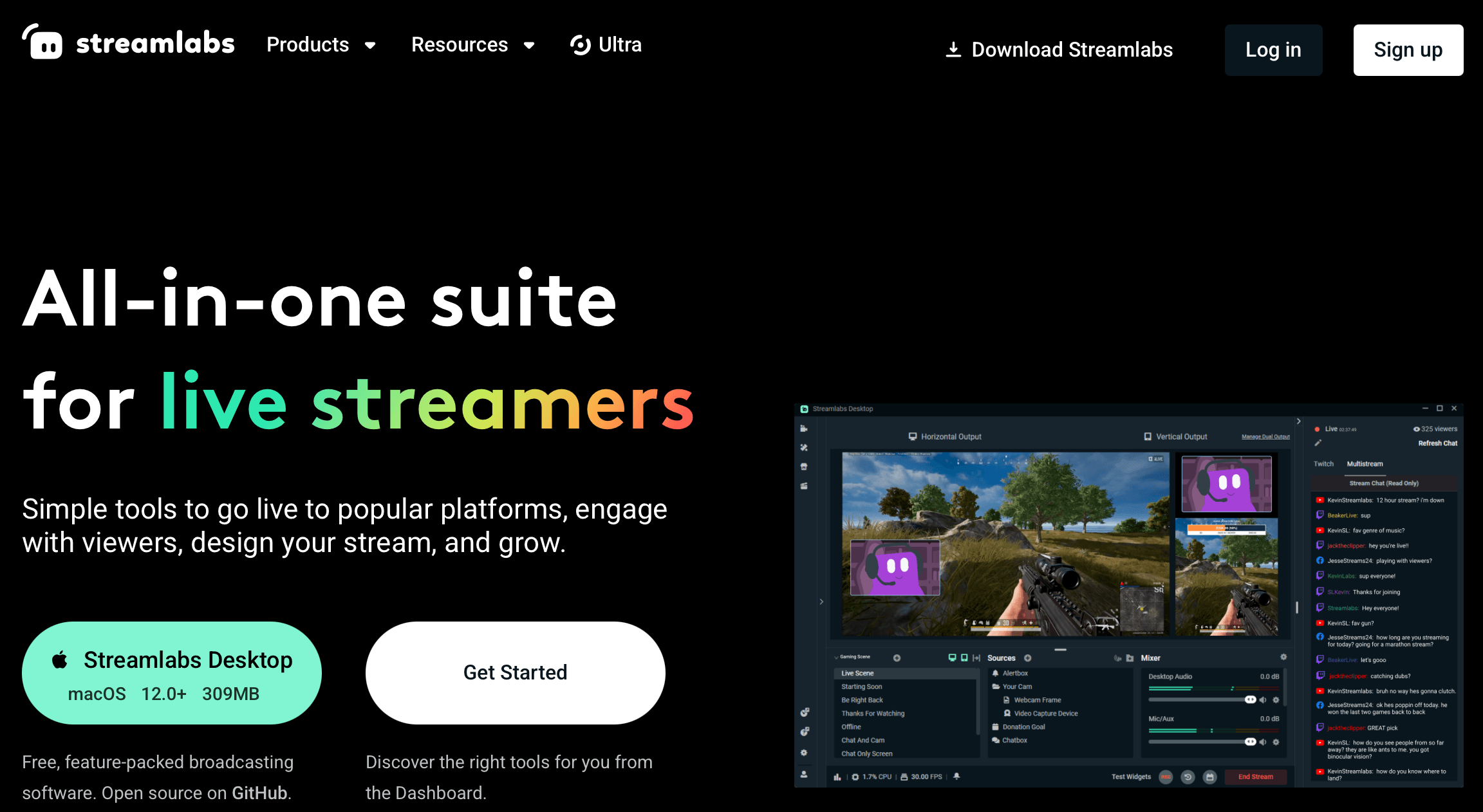
Streamlabs Desktop’s scene editor, where overlays, alerts, and widgets come together before you go live.
Why Streamlabs Stands Out in 2026
A genuinely free tier that isn’t a trial: Streamlabs Desktop costs nothing, has no expiry, and covers scene management, alerts, widgets, chat integration, and single-destination streaming to Twitch, YouTube, Facebook, TikTok, or Kick. Plenty of “free” streaming tools quietly push you to upgrade within days; Streamlabs’ free layer stays usable indefinitely for anyone streaming to one platform.
One ecosystem instead of five separate tools: Alerts, overlays, a tipping page, a merch store, analytics, a chatbot, and — with Ultra — a video editor, a clip repurposer, a podcast editor, and a browser studio all share one Streamlabs ID login. For creators who’d otherwise juggle five different subscriptions and five different logins, that consolidation is a real time saver.
Console streaming without a PC: Streamlabs Console lets Xbox players stream directly from the console — no capture card, no separate gaming PC needed. That’s a gap most competitors, including OBS and StreamYard, simply don’t address.
A genuinely large overlay and widget marketplace: Thousands of professionally designed stream overlays, alert themes, and widget packs — including niche styles for VTubers and specific games — are available, most gated behind Ultra. Designing a comparable custom look from scratch in OBS alone would take real design skill and hours of work.
Built-in monetization without extra plugins: Tips, subscription alerts, a print-on-demand merch store, and goal widgets are wired in from the start, so a new streamer can start accepting support from viewers on day one without stitching together third-party services.
Logitech hardware perks for Ultra members: Ultra subscribers get discounts on Logitech G streaming hardware and priority access to giveaways, a small but real bonus for creators already buying capture gear, mics, or lighting.
A genuine student discount: Verified .edu students get 50% off Ultra using the STUDENT code, bringing the monthly cost down to roughly $13.50 — one of the more generous education discounts among streaming platforms.
Analytics that span every connected platform: Instead of checking Twitch analytics, then YouTube Studio, then a separate Facebook dashboard, Streamlabs consolidates viewer, follower, and revenue trends into one panel, which makes it much easier to spot which platform is actually driving growth.
A decade-plus of community knowledge: Because Streamlabs has been around since the early Twitch-streaming boom, troubleshooting guides, YouTube tutorials, and Discord communities exist for nearly every setup problem a new streamer is likely to hit, which shortens the learning curve considerably compared to newer, smaller tools.
Key Features and Technology
Streamlabs isn’t one product so much as a family of connected apps under a single Streamlabs ID. Understanding what each piece actually does makes it much easier to figure out which parts you’ll use — and which parts of the Ultra bundle you’d be paying for and never touching.
Streamlabs Desktop and Mobile
The core app is a scene-and-source based broadcaster in the same family as OBS: you build scenes from webcam, game capture, browser sources, and images, then switch between them live. Alerts, a chat box, follower/subscriber goal widgets, and a media-share widget for song/video requests are all built in and configurable through a visual editor rather than manual code. Streamlabs Mobile mirrors much of this for phone-based live streaming and remote monitoring.
Multistreaming and Talk Studio
Multistreaming — sending one broadcast to Twitch, YouTube, and Facebook simultaneously — routes through Streamlabs’ own servers rather than your PC’s upload bandwidth, and it’s an Ultra-only feature. Talk Studio is the browser-based side of that story: a no-download studio for hosting guest interviews and panel-style streams, supporting up to 11 guests on Ultra, with its own theming and multistream routing.
Cross Clip, Video Editor, and Podcast Editor
Cross Clip Pro turns long VODs into vertical clips sized for TikTok, YouTube Shorts, and Reels, with captions and simple animations. Video Editor Pro and Podcast Editor Pro extend that into full episode editing — useful if you’re repurposing stream footage into a podcast feed or a YouTube channel, but genuinely unnecessary if you only ever stream live and never touch the recordings afterward.
Streamlabs Console and Monetization Tools
Streamlabs Console brings the same alert and overlay system to Xbox streaming without a capture card. On the monetization side, the built-in tipping page, subscription alerts, and print-on-demand Merch store (with better profit margins for Ultra members) mean a new streamer can start earning from day one, and analytics dashboards track growth across connected platforms in one place.
Overlay, Widget Theme, and Alert Box Marketplace
This is arguably the feature that made Streamlabs’ reputation in the first place. Rather than designing a scene layout, follower alert animation, and chat box style yourself in an image editor, you can browse a marketplace of thousands of pre-built themes made by professional designers, covering everything from minimalist corporate looks to elaborate anime- and VTuber-inspired sets. Free users get access to a limited rotating selection; Ultra unlocks the full catalog, along with the ability to customize colors, fonts, and animations within each theme rather than using it exactly as downloaded.
Cloudbot and Viewer Engagement Tools
Streamlabs’ Cloudbot runs moderation and chat commands (timers, giveaways, song requests, custom commands) directly from the cloud rather than requiring a separate always-on bot account, which is a meaningful convenience for smaller streamers who don’t want to run a second application just to keep chat moderated while they’re live.
Pricing, Plans, and Package Structure
Streamlabs runs a two-track model: a fully free Streamlabs Desktop for anyone streaming to a single platform, and a paid Ultra subscription that unlocks the wider ecosystem. Individual apps (Talk Studio, Cross Clip, Video Editor, Podcast Editor, Streamlabs Console) can technically be subscribed to a-la-carte, but Streamlabs itself positions Ultra as the better-value option once you’re using more than one of them.
| Plan | Price | What It Is | Best For |
|---|---|---|---|
| Free (Starter) | $0 | Streamlabs Desktop/Mobile core streaming, alerts, overlays, single-destination streaming, watermarked clip exports | Beginners streaming to one platform |
| Ultra (Monthly) | ~$27/month | Unlimited multistreaming, full overlay/widget library, Talk Studio Pro, Cross Clip Pro, Video Editor Pro, Podcast Editor Pro, Streamlabs Console | Active streamers using several platforms/tools |
| Ultra (Annual) | ~$189/year (≈$15.75/mo) | Same Ultra feature set, billed once a year | Anyone committed to streaming long-term |
| Ultra Plus | Custom/contact pricing | Everything in Ultra plus higher AI production limits, a dedicated Streamlabs contact, onboarding call, and twice-yearly strategy calls | Established creators/small teams wanting hands-on support |
| Ultra (Student) | ~$13.50/month or $94.50/year | Full Ultra feature set at 50% off with a valid .edu email and STUDENT code | Verified students |
How Streamlabs Compares to Alternatives
| Factor | Streamlabs | OBS Studio | StreamYard |
|---|---|---|---|
| Price | Free core; ~$27/mo Ultra | Completely free, always | Free tier limited; Core ~$44.99/mo (~$35.99/mo annual, approx.) |
| Install type | Desktop app + mobile + browser (Talk Studio) | Desktop app only | Fully browser-based, no download |
| Overlays & alerts | Large built-in marketplace, many gated behind Ultra | None built-in; requires manual setup or plugins | Branding/overlay tools, simpler design set |
| Guest interviews | Talk Studio, up to 11 guests on Ultra | Not built-in; needs third-party call software | Core strength; up to 10 on-screen participants, no downloads for guests |
| Learning curve | Moderate; more approachable than OBS | Steep; manual scene/source configuration | Low; built for simplicity and non-technical hosts |
| Best for | Gaming/Twitch streamers wanting an all-in-one ecosystem | Technical streamers who want full control at zero cost | Podcasters/interview shows needing easy remote guests |
Streamlabs vs. OBS Studio comes down to time versus money: OBS is completely free forever and gives you full manual control, but you build every overlay, alert, and widget yourself or through third-party plugins. Streamlabs charges for that convenience but hands you a working, good-looking setup in minutes.
Streamlabs vs. StreamYard is a desktop-vs-browser trade-off. StreamYard’s no-download approach makes it easier for non-technical guests to join a show, and its Core plan sits at a similar or higher monthly cost than Streamlabs Ultra — but you’re paying primarily for the interview/podcast experience, not a full gaming-stream ecosystem. If your show is guest-driven, StreamYard’s browser workflow is usually smoother; if you’re gaming-focused with occasional guests, Streamlabs’ Talk Studio inside the wider Ultra bundle is the more complete package.
Streamlabs vs. Restream is really about multistreaming specifically: Restream’s Standard plan (around $19/month) covers multistreaming to three destinations for less than Ultra’s $27/month, so if multistreaming is the only paid feature you need, Restream can be the cheaper single-purpose tool. Ultra only wins that comparison once you’re also using the overlay library, Talk Studio, or the clip/video/podcast editors.
Put simply: choose OBS if your priority is zero cost and full control and you don’t mind a manual setup; choose StreamYard if your show is guest- and interview-driven and you’d rather work entirely in a browser; choose Restream if multistreaming is the only paid feature on your list; and choose Streamlabs Ultra if you want a single subscription that covers streaming, overlays, guest hosting, and post-production editing all at once.
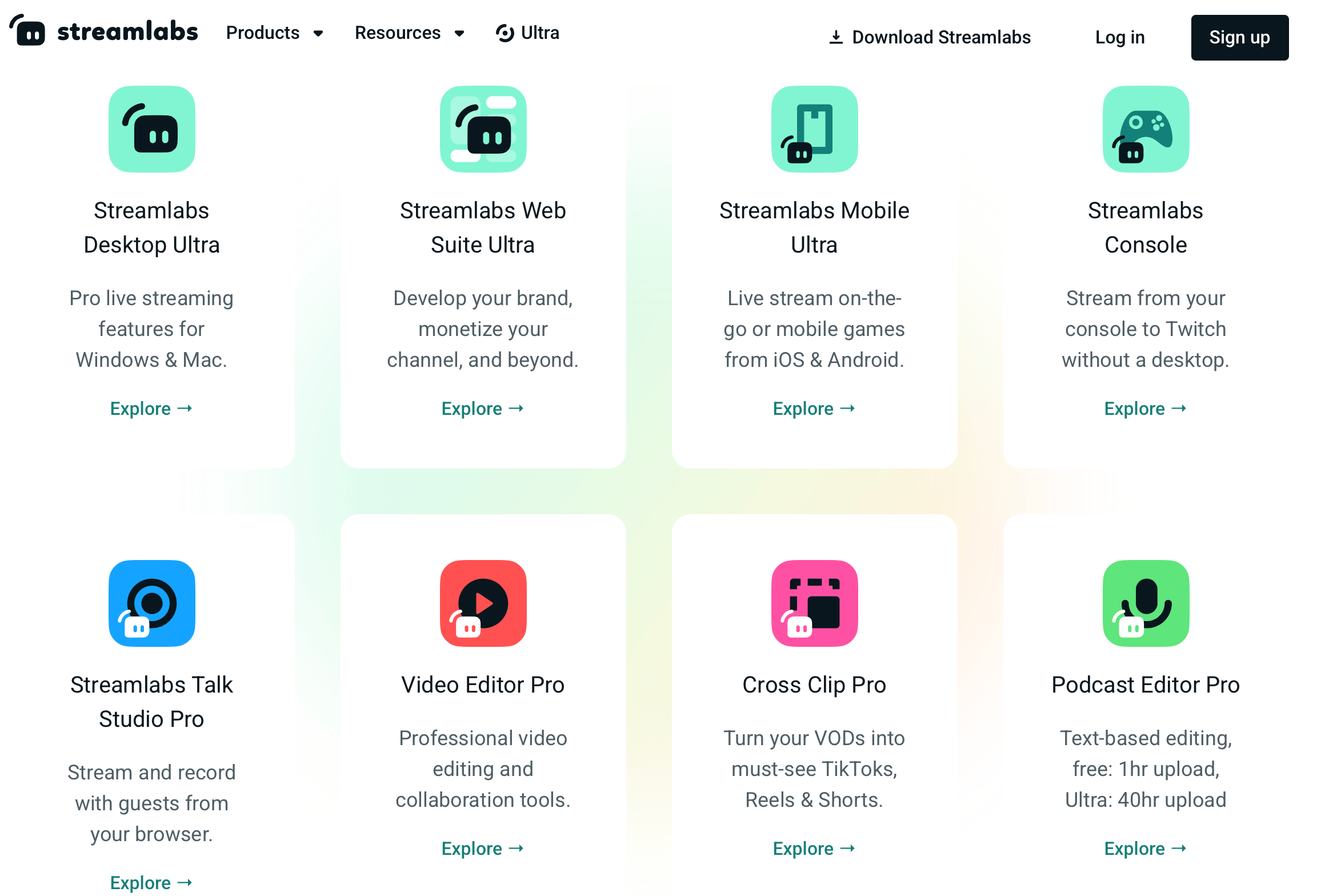
Multistreaming to several platforms simultaneously is one of Ultra’s headline features.
Pros and Cons
What Users Love
Genuinely usable free tier: Reviewers on G2 and Capterra repeatedly note that Streamlabs is a solid streaming option even without ever paying, which is rare among “freemium” streaming tools.
Fast, low-friction setup: New streamers consistently praise how quickly they can go from download to a polished-looking live stream, without needing design skills.
Ecosystem convenience: Having alerts, chat, tipping, overlays, and post-production tools under one login genuinely reduces the mental overhead of juggling separate apps, a point users highlight often in reviews.
Strong community support: A large user base means troubleshooting help, tutorials, and third-party guides are easy to find online.
Cross-device flexibility: Reviewers frequently mention appreciating that they can manage or monitor a stream from the desktop app, mobile app, or a guest can join purely through the browser via Talk Studio, without everyone needing the same setup.
Limitations Worth Knowing
Documented billing complaints: Streamlabs settled a $4.4 million class action over past billing disclosure practices, and Trustpilot/Capterra still show a recurring pattern of users describing unexpected renewal charges or trouble cancelling — treat the subscription like any other auto-renewing service and watch your statements.
Meaningful features locked behind Ultra: Multistreaming, the full overlay library, and watermark-free exports all require the paid tier, which can feel like a bait-and-switch if you didn’t research the free/paid split before installing.
Can feel resource-heavy: Some users report the app freezing or slowing down with many widgets or plugins active, especially on lower-spec machines.
Ultra pricing sits in an awkward middle: At $27/month, Ultra costs more than single-purpose competitors like Restream if all you need is multistreaming, and it’s in the same range as StreamYard’s Core plan, which many find better for pure interview-style shows.
Talk Studio can feel bolted-on: Several reviewers note that the browser-based Talk Studio, while functional, doesn’t feel as tightly integrated with the desktop app as the rest of the ecosystem, which can be a minor friction point if you regularly switch between solo streaming and guest-driven shows.
Who Should Use Streamlabs
New Twitch and YouTube streamers: The free tier gives beginners a professional-looking stream without any design work, making Streamlabs a strong first stop for anyone just starting out.
Gamers who want to multistream: If your growth strategy depends on reaching Twitch and YouTube (or TikTok) audiences at the same time, Ultra’s server-side multistreaming is a genuine time and bandwidth saver.
Xbox-only creators: Streamlabs Console fills a gap most competitors don’t: streaming straight from console without owning a capture card or gaming PC.
Creators repurposing VODs into shorts or podcasts: Bundling Cross Clip, Video Editor, and Podcast Editor with Ultra can genuinely replace three separate subscriptions for creators who already record long-form content.
Students and budget-conscious streamers: The 50%-off student pricing makes Ultra genuinely affordable for creators still in school, at a price point most competitors don’t match with an equivalent discount.
Streamlabs is a weaker fit if you’re a podcaster or interview host whose whole show revolves around guests — StreamYard’s browser-first workflow is usually smoother there. It’s also not the right pick for technical streamers who want zero recurring cost and full manual control, since OBS Studio delivers that for free with more configuration effort. And if past billing complaints are a dealbreaker for you regardless of the product quality, that’s a reasonable place to walk away.
Getting Started: Step by Step
- Create a Streamlabs ID. Sign up at streamlabs.com and download Streamlabs Desktop for Windows or Mac.
- Connect your streaming platforms. Link Twitch, YouTube, Facebook, TikTok, or Kick through the built-in login — no manual stream keys needed for most platforms.
- Pick or build a scene layout. Choose a free theme or browse the overlay marketplace, then add your webcam, game capture, and alert widgets.
- Set up alerts and your tipping page. Configure follower, subscriber, and donation alerts, then activate your Streamlabs tipping page to start accepting viewer support.
- Test your stream privately. Use a test stream or platform-specific private mode to confirm audio, video, and alerts work before going live publicly.
- Decide on Ultra only once you hit a real limit. Stay on the free tier until you specifically need multistreaming, the full overlay library, or the post-production apps — then upgrade with a clear reason, and calendar your renewal date.
Tips for Getting Maximum Value
Start entirely on the free tier and only upgrade once you can name the specific Ultra feature you’re missing — multistreaming, a particular overlay pack, or Talk Studio for a guest episode — rather than upgrading “just in case.” If you do go Ultra, choose annual billing to cut the effective monthly cost roughly in half, and if you’re a student, apply the STUDENT code immediately since it isn’t always advertised prominently. Keep an eye on CPU and RAM usage if you layer on many widgets or third-party plugins, since that’s the most common performance complaint; closing unused browser sources and disabling widgets you aren’t actively using during a given stream both help noticeably on lower-spec machines.
Before your first stream, run a private test broadcast rather than debugging live in front of an audience — most platforms offer an unlisted or scheduled option for exactly this. Take the time to set your bitrate and resolution based on your actual upload speed rather than maxing out every setting; a stable 1080p30 stream will look and feel far more professional to viewers than a 1440p stream that keeps buffering. If you’re multistreaming, remember that engagement (chat, alerts) is usually easiest to manage from your “primary” platform, so pick the one where your core audience actually lives and treat the others as secondary reach rather than trying to engage equally across all of them at once.
Finally, treat the subscription like you would any auto-renewing service: note your renewal date, keep a screenshot of your plan and price at signup, and cancel proactively (through the Streamlabs dashboard or your app store subscriptions, depending on how you signed up) if you decide it’s no longer worth it, rather than assuming a single email will handle it. If you do subscribe via Google Play or the App Store, remember cancellation has to happen through that store’s subscription settings, not through the Streamlabs website itself.
Future Outlook and Final Assessment
Backed by Logitech and with millions of active users, Streamlabs isn’t going anywhere, and its direction — bundling more creator tools (editing, clipping, podcasting) around the core streaming app — matches where a lot of independent creators are already heading, since fewer of them stream live without also repurposing that footage elsewhere. The Intelligent Streaming Agent and other AI-assisted production features suggest Streamlabs will keep leaning into automation to reduce the technical overhead of running a professional-looking stream solo.
The billing history is the one real shadow over an otherwise well-regarded product, and it’s fair to factor that into your decision rather than dismiss it. If Streamlabs can keep the improvements it made to its billing transparency in 2022 consistent going forward, the underlying software easily justifies its reputation as one of the most approachable ways to start streaming professionally.
Competitively, the streaming software space isn’t standing still: browser-first tools like StreamYard keep pushing on guest experience, and dedicated multistream services like Restream keep undercutting Ultra on price for that one specific feature. Streamlabs’ defense is breadth rather than being the cheapest or the simplest at any single job — and for creators who genuinely use several pieces of that ecosystem, that breadth is likely to keep paying off even as competitors sharpen their individual specialties.
Conclusion
Streamlabs earns its popularity honestly: the free tier is a real, complete streaming setup, and the Ultra ecosystem consolidates tools that would otherwise cost more spread across separate subscriptions. It isn’t the cheapest way to multistream, and it isn’t the smoothest guest-interview experience on the market, and its billing history deserves a place in your decision — but for a beginner or gaming-focused streamer who wants one app, one login, and a professional look without hiring a designer, Streamlabs is still one of the strongest starting points available in 2026.
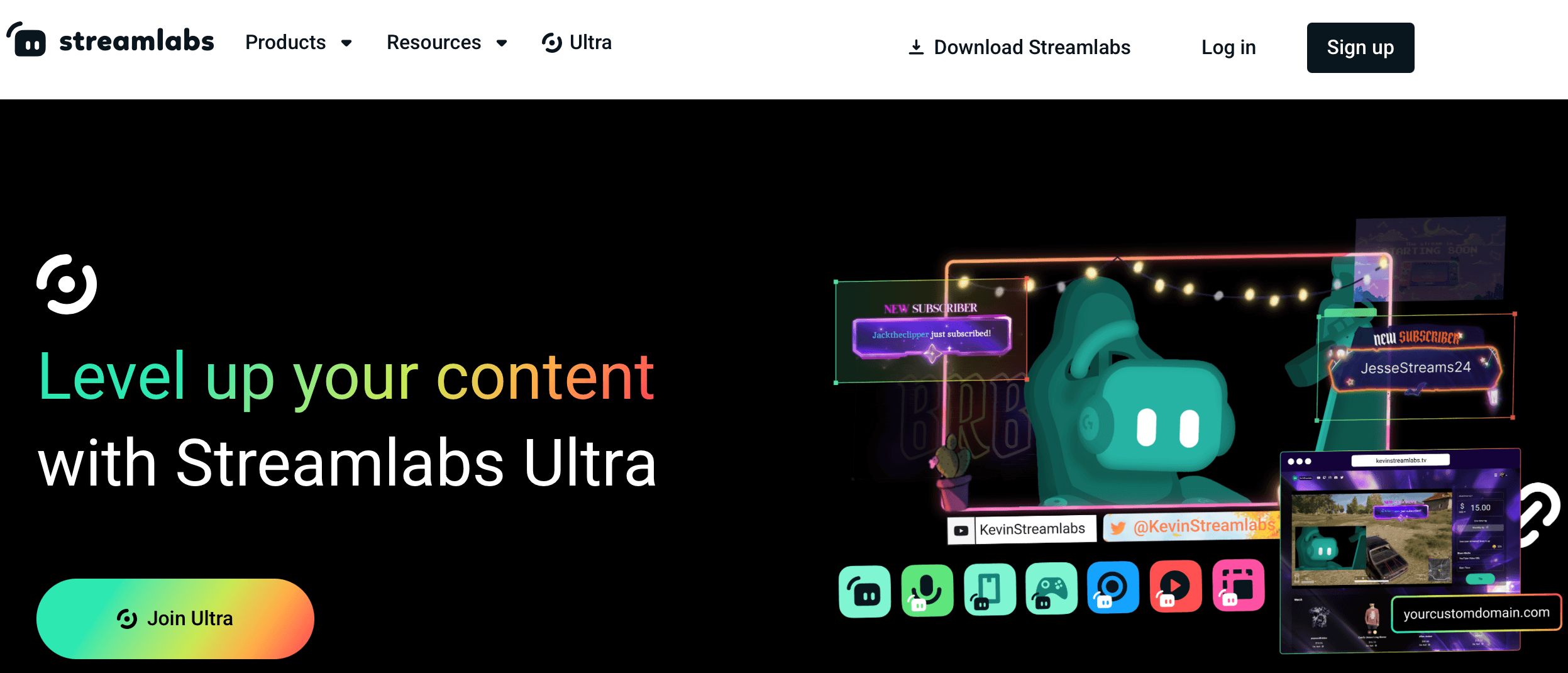
Thousands of designer-made overlay and alert themes are available in the Streamlabs marketplace.
Ready to go live like a pro?
Explore more honest reviews, tutorials and tech comparisons to find the right gear for the way you work, travel and live — at World Of Tech, where we make everything easy.
👉 Shop Streamlabs: https://worldoftech.space/streamlabs
👉 Our YouTube Channel: youtube.com/@world_tech79
👉 Our Facebook Fanpage: Facebook
👉 Our X (Twitter): @worldoftech79
Pricing, specifications and policy details in this review were verified against streamlabs.com and independent review sources (Trustpilot, G2, Capterra) as of July 2026. SaaS pricing and features change frequently, so confirm current details on the official site before purchasing. Competitor prices are approximate and subject to change.