
If you have scrolled a TikTok, a Reel or a YouTube Short in the last two years, there is a good chance the video was edited in CapCut. Built by ByteDance — the same company behind TikTok — CapCut has become the default video editor for short-form creators, with more than a billion downloads and a genuinely capable free tier that most rivals cannot match. The tool itself is fast, beginner-friendly and packed with AI features that turn raw phone footage into polished, caption-ready clips in minutes. But CapCut in 2026 is a study in contrasts: a brilliant editor wrapped in one of the most troubled billing and support reputations in the category, sitting under the same regulatory cloud as its TikTok sibling.
Both of those things are true at once, and an honest review has to hold them together. On the Apple App Store, CapCut earns a stellar 4.6/5 from over a million reviews; on Trustpilot, it sits near the bottom of the scale — and the gap tells you exactly where CapCut shines and where it fails. This 2026 review walks through everything that matters before you commit: what CapCut does brilliantly, its full feature set and AI toolkit, the confusing new pricing after the early-2026 restructure, how it compares to DaVinci Resolve, Adobe Premiere Pro and Canva, the real billing and privacy risks, and exactly who should use it — and who should stay well clear of the paid plans.
CapCut Review 2026: A Brilliant Free Video Editor With a Troubled Billing Reputation
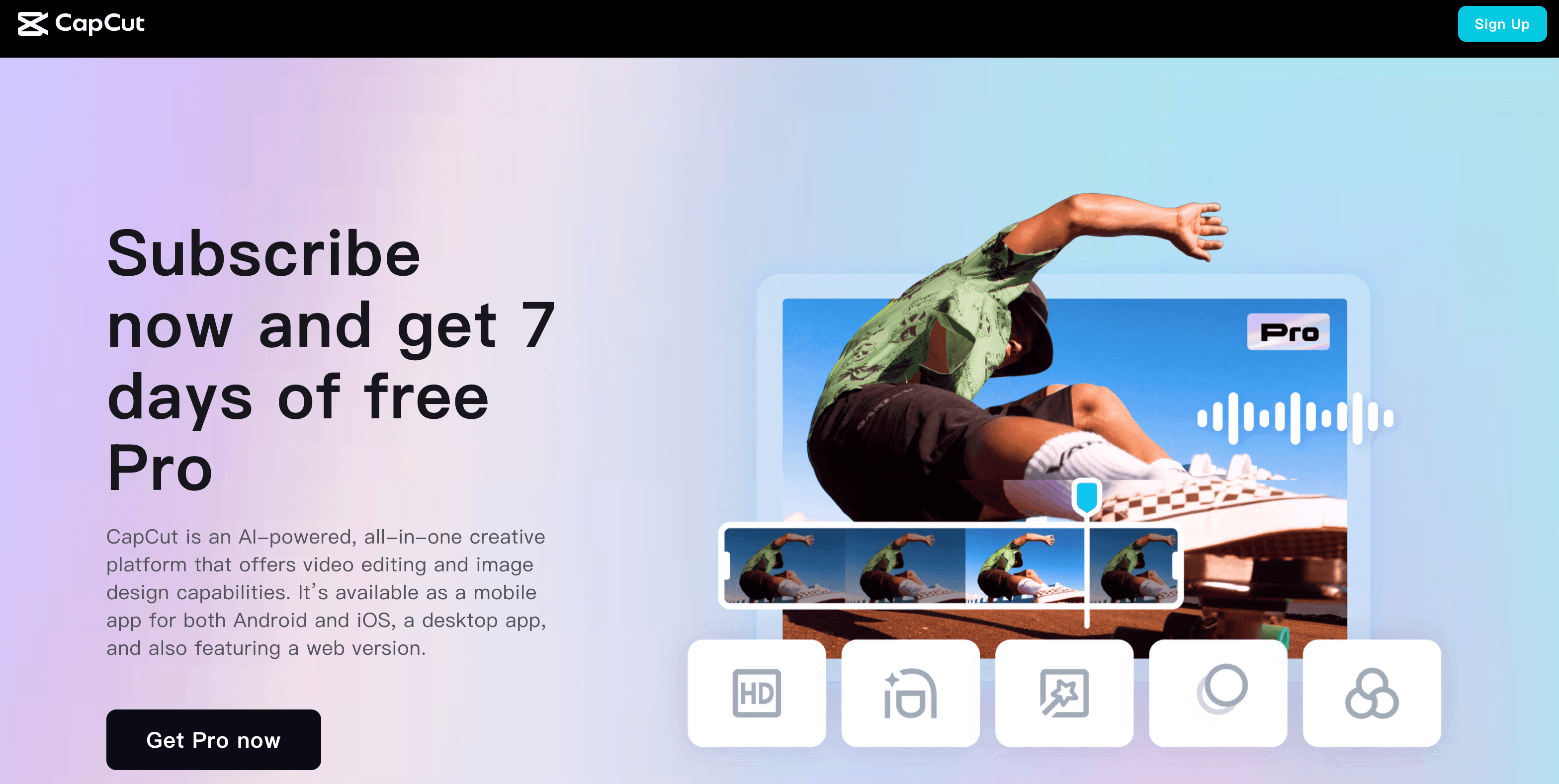
CapCut pairs a genuinely capable free editor with an AI toolkit built for fast short-form content.
Overview and Background
CapCut is a cross-platform video editor developed by ByteDance, launched originally as a free mobile app and grown into a full creative suite. It runs almost everywhere: a mobile app on iOS and Android, a desktop app for Windows 10+ and macOS 10.15+, an iPad version (CapCut Pad), and a browser-based online editor at capcut.com that needs no installation. Around the core editor, ByteDance has built an expanding ecosystem — including the Dreamina AI image-and-video generator and the Pippit AI creative agent — positioning CapCut as more than a simple trimming tool.
The scale is enormous. CapCut has surpassed a billion downloads on Google Play alone and holds a 4.6/5 rating on Apple’s App Store from more than 1.1 million reviews. For creators making TikToks, Reels and Shorts, and for small-business marketing teams racing to fill content calendars, it has become the default first choice — largely because it promises professional-looking results without a professional learning curve. Its tight, TikTok-native workflow and its huge library of templates and effects are the reason so many creators never leave.
What sets CapCut apart from most free editors is that its free tier is unusually generous. The full timeline editor — multi-track editing, keyframe animation, chroma key, speed ramping, transitions, filters, text tools and audio — is available at no cost, and standard edited exports leave no watermark, capped at 1080p. That combination made CapCut the go-to free editor for a generation of creators. The complication, and the reason for this review’s cautious tone, is what happens when you cross into the paid plans.
Why CapCut Stands Out in 2026
The most capable free video editor available: This is CapCut’s single biggest advantage. Nearly every competing free editor — Filmora free, Canva free, InShot free — stamps a watermark on exports. CapCut does not on standard edited exports, and your free videos look identical to paid ones, just at 1080p instead of 4K. For casual creators, that alone makes it a category leader before you consider anything else.
Speed and a genuinely gentle learning curve: CapCut is built for people who have never touched a timeline. The interface prioritizes fast, satisfying results over deep control, letting a complete beginner produce a polished, on-trend clip in minutes. Reviewers repeatedly describe getting professional-looking output with effectively zero editing background — the reason it dominates the beginner and prosumer market.
A deep, practical AI toolkit: Auto-captions, text-to-speech, AI voiceovers, background removal, scene detection and auto-edit features do the tedious work automatically. These are the tools that save creators hours per week, and they are the main reason CapCut feels faster than traditional editors for social-first content like tutorials, product demos and launch videos.
A massive template and effects library: CapCut’s enormous catalog of templates, transitions, text styles and royalty-free assets lets you produce trend-driven, repeatable short-form content quickly — pick a template, drop your clips in, and export. For creators who batch-produce Reels and TikToks, this template ecosystem is a genuine productivity engine.
A TikTok-native, cross-platform workflow: Because CapCut and TikTok share a parent company, the pipeline from edit to publish is seamless, and CapCut’s aspect-ratio presets and trending sounds are tuned for exactly that. You can start on your phone, continue in the browser and finish on desktop, with cloud storage syncing projects across devices.
Free cloud collaboration: Unusually for a consumer editor, CapCut offers cloud spaces where teams can store projects and invite members, effectively turning a phone app into a lightweight shared media studio — a real advantage for small startups and lean marketing teams that cannot afford a full production stack.
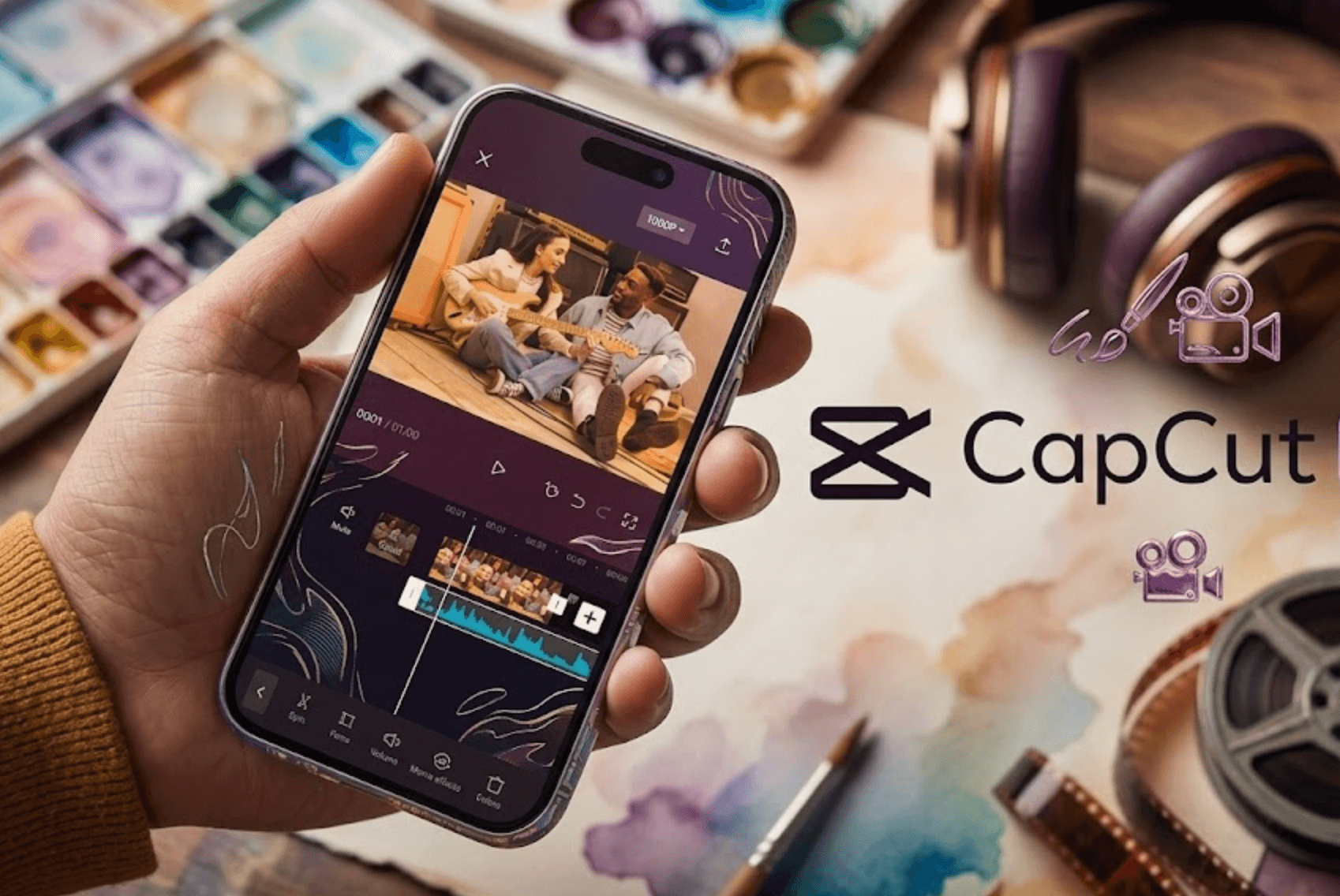
Auto-captions, templates and one-tap AI tools are where CapCut saves the most time.
Key Features and Technology
CapCut’s feature set spans core timeline editing, a broad AI suite, powerful audio and captioning tools, and a large asset library — with the highest-end export and AI capabilities reserved for paid tiers. Here is how the main pieces fit together.
Core Timeline Editing
The foundation is a full non-linear editor: cut, split and trim on a multi-track timeline, with keyframe animation, chroma key (green screen), speed ramping, transitions, filters, masks and a deep text engine. None of these core tools are locked on the free plan — there are no disabled buttons or feature walls interrupting the basic workflow, which is what makes CapCut feel complete rather than crippled at zero cost.
The AI Creation Suite
This is where CapCut invests heavily. The AI toolkit includes auto-captions, text-to-speech, AI voice effects and voiceovers, background removal, scene detection and AI auto-edit, plus higher-end Pro-only features such as camera tracking, vocal isolation, speaker-ID captions, text-to-video and background removal in bulk. Generative features draw on a monthly AI-credit balance, with optional top-ups if you exhaust it. On the free plan, tools like AI auto-edit and the effects generator carry monthly usage caps that casual creators rarely hit but daily producers will.
Captions and Audio Tools
Auto-captions are one of CapCut’s most-loved features, transcribing speech into styled, editable subtitles that match short-form conventions. The free tier limits auto-captions to a per-video length, while paid plans remove that cap. Alongside captions sit a large free music and sound-effects library, noise reduction, voice enhancement and speech-to-text — a genuinely useful audio stack for a tool most people think of as a video app.
Templates, Effects and Asset Library
CapCut ships with a vast catalog of templates, effects, transitions and royalty-free assets, with the full premium library and commercial licensing gated behind Pro. Important nuance: while standard edited exports are watermark-free, templates and effects marked “Pro” will export with a watermark unless you subscribe — a frequent source of surprise when creators discover a paywall only at export time.
Export and Cloud
Free exports top out at 1080p; 4K and HDR export are Pro features, paired with expanded cloud storage (up to 1TB on Pro) for cross-device syncing. Priority export processing on paid tiers speeds up rendering for creators pushing multiple videos a day. The web and desktop apps require an internet connection and a CapCut or TikTok account to sign in.
Pricing, Plans, and Package Structure
CapCut’s pricing changed significantly in an early-2026 restructure that was not formally announced as an increase, and this is central to the frustration many users feel. The old single Pro plan (historically around $7.99/month) was renamed Standard and repriced, while a new, more capable Pro tier was introduced at a much higher rate. CapCut is subscription-only — there is no lifetime or one-time license — and, importantly, the company states on its own site that prices vary by region, device (iOS/Android/web) and active promotions, and directs you to check the live price inside your account before paying. The figures below are widely reported USD web-checkout rates and should be treated as approximate; some users report seeing higher regional prices.
| Plan | Price (USD, approx.) | What It Is | Best For |
|---|---|---|---|
| Free | $0 | Full timeline editor, 1080p watermark-free standard exports, basic AI, capped auto-captions | Casual creators, TikTok/Reels/Shorts, beginners |
| Standard | ~$9.99/mo | Removes watermarks, unlocks more templates/effects; 1080p, no 4K or full AI (mostly mobile) | Mobile users who only need watermark removal |
| Pro | ~$19.99/mo or ~$179.99/yr | 4K/HDR export, full AI toolkit, ~1TB cloud, larger AI-credit balance, premium library | Regular creators needing 4K and advanced AI |
| Team | ~$24.99/user/mo (varies) | Everything in Pro plus shared brand kits, team workspace and collaboration | Agencies and multi-creator marketing teams |
| AI credit top-up | From ~$4.99 / 100 credits | Extra generative-AI credits, valid two years, used after plan credits | Heavy AI users who exhaust their monthly balance |
How CapCut Compares to Alternatives
| Factor | CapCut | DaVinci Resolve | Adobe Premiere Pro |
|---|---|---|---|
| Pricing model | Freemium + subscription (Pro ~$19.99/mo) | Free tier + Studio ~$295 one-time | Subscription ~$22.99/mo |
| Free version | Excellent, watermark-free standard exports | Excellent, no watermark, pro-grade | None (7-day trial only) |
| Best strength | Speed, AI tools, templates, mobile-first | Color grading, VFX, audio post | Industry-standard, Adobe ecosystem |
| Learning curve | Very gentle | Steep | Moderate to steep |
| Platforms | iOS, Android, Win, Mac, iPad, web | Win, Mac, Linux, iPad | Win, Mac |
| Billing reputation | Poor (Trustpilot ~1.2–1.3/5) | Simple one-time purchase | Established, predictable |
| Best for | Short-form social creators | Color/finishing pros on a budget | Studio and Adobe-ecosystem editors |
vs. DaVinci Resolve: Resolve is the tool many frustrated CapCut users migrate to — its free version is a genuinely professional editor with no watermark, no time limit and industry-leading color grading, and Studio is a one-time ~$295 license with no subscription. The trade-off is a much steeper learning curve and heavier hardware demands. If you want depth, control and a clean billing model, Resolve wins; if you want speed and mobile-first simplicity, CapCut does. Prices are approximate and subject to change.
vs. Adobe Premiere Pro: Premiere is the broadcast and studio standard, with deep integration across After Effects, Photoshop and the wider Creative Cloud. It costs roughly $22.99/month with no free tier, so it is aimed at professionals rather than casual creators. CapCut is far cheaper and dramatically easier to learn, but it cannot match Premiere’s ceiling for complex, long-form or collaborative studio work.
vs. Canva: Canva is the closest design-and-video hybrid, strong on templates, brand kits and predictable billing (Canva Pro is roughly $120/year, approximate). Choose Canva when you need a combined design-and-social tool with a calmer subscription experience; choose CapCut when your work is video-first and you rely on timeline editing, AI effects and CapCut’s short-form template ecosystem. Many teams use both.
Pros and Cons
What Users Love
A free tier that genuinely delivers: The most consistent praise is that CapCut’s free plan does what other apps charge for — a full editor with watermark-free standard exports. For casual creators and lean startups, that is repeatedly described as finding a gold mine, and it is the single strongest reason for the app’s dominance.
Fast, beginner-friendly, time-saving: Owners with zero editing experience consistently report producing polished, scroll-stopping content in minutes. Social media managers highlight how much time the auto-captions, transitions and trending templates save when batch-creating Reels and TikToks.
Strong, practical AI tools: Auto-captions, the AI background remover, text-to-speech and voice enhancement earn steady praise for turning multi-step tasks into one-tap actions — exactly the kind of automation that matters for high-volume social content.
A huge template and effects ecosystem: The template library is a favorite for creators who need to produce trend-driven content quickly and repeatedly, making CapCut feel less like an editor and more like a content factory for short-form video.
Cross-platform and collaborative: Editing across phone, tablet, browser and desktop with cloud sync, plus free cloud collaboration spaces, is a real convenience — creators can start on mobile and finish on desktop without losing their project.
Limitations Worth Knowing
A serious billing and cancellation reputation: This is the most important caveat in the entire review. On Trustpilot, CapCut sits at roughly 1.2–1.3/5 from over a thousand reviews, with about 86% one-star — and its profile is unclaimed. The complaints are strikingly consistent: charges continuing after cancellation, cancellation buttons that are hard to find or do not work, auto-enrollment after trials, and surprise charges. This is the number that matters if you plan to pay.
Support that is very hard to reach: The second-most-common complaint is near-absent customer support. Users report email-only help with response times of weeks, canned or bot-like replies, and unresolved billing tickets. Getting a refund, an invoice or a real person is described as extremely difficult, and ByteDance’s related Better Business Bureau profile carries a poor grade with many complaints.
Confusing, rising prices and paywall creep: The early-2026 restructure roughly doubled the top tier and split plans into Standard and Pro with little clear communication, and prices vary by region and device. Features and storage some users once treated as free have moved behind paid tiers, and Pro-tagged templates and effects export with a watermark — creating a bait-and-switch perception among long-time users.
ByteDance ownership and privacy/regulatory questions: CapCut carries the same baggage as TikTok. There is an active US class-action lawsuit, first filed in 2023, alleging CapCut collected users’ photos, videos, location and biometric data without proper consent; a federal judge allowed key California privacy claims to proceed in 2025 and the case remains live. CapCut was also briefly removed from US app stores in January 2025 under the foreign-adversary-app law before being restored. It is not banned as of 2026, but it sits under the same regulatory cloud — a real consideration for privacy-sensitive users and some corporate IT policies.
Not built for long-form or color-critical work: CapCut is tuned for short social clips. Reviewers cite practical limits for longer projects and note that serious long-form YouTube editing, multi-cam and professional color grading are better served by DaVinci Resolve, Premiere or Final Cut. Heavy template reliance also tends to make content look like everyone else’s.
Performance and connectivity quirks: Some users report the web and desktop apps being buggier than mobile, occasional lag or crashes, limited browser support, and the need for an internet connection to export. These are not universal, but they show up often enough to plan around if you work to deadlines.
Who Should Use CapCut
Casual and free-tier creators: This is CapCut’s sweet spot. If you make TikToks, Reels or Shorts and want professional-looking results without paying anything, the free tier is the best in its class — watermark-free, genuinely capable, and fast to learn.
Social media managers and small marketing teams: For anyone filling a content calendar, CapCut’s templates, auto-captions and cross-device workflow save real hours per week. The free cloud collaboration makes it a practical lightweight studio for lean teams — provided you manage billing carefully if you upgrade.
Beginners and non-editors: If you have never touched a timeline, CapCut’s gentle learning curve and guided, template-driven workflow get you to a finished video faster than any professional NLE. It is the ideal on-ramp to video editing.
Creators who batch trend-driven content: If your output is high-volume, effects-heavy short-form video where the visual style is the point, CapCut’s template ecosystem is a genuine productivity multiplier.
Who should look elsewhere: Long-form YouTube editors, colorists and multi-cam professionals will hit CapCut’s ceiling — DaVinci Resolve, Premiere or Final Cut are better fits. Anyone wary of auto-renewing subscriptions given the documented billing complaints, and privacy-sensitive users or organizations with IT policies cautious about ByteDance-owned software, should think carefully before subscribing — or stay on the free tier and watch their billing closely.
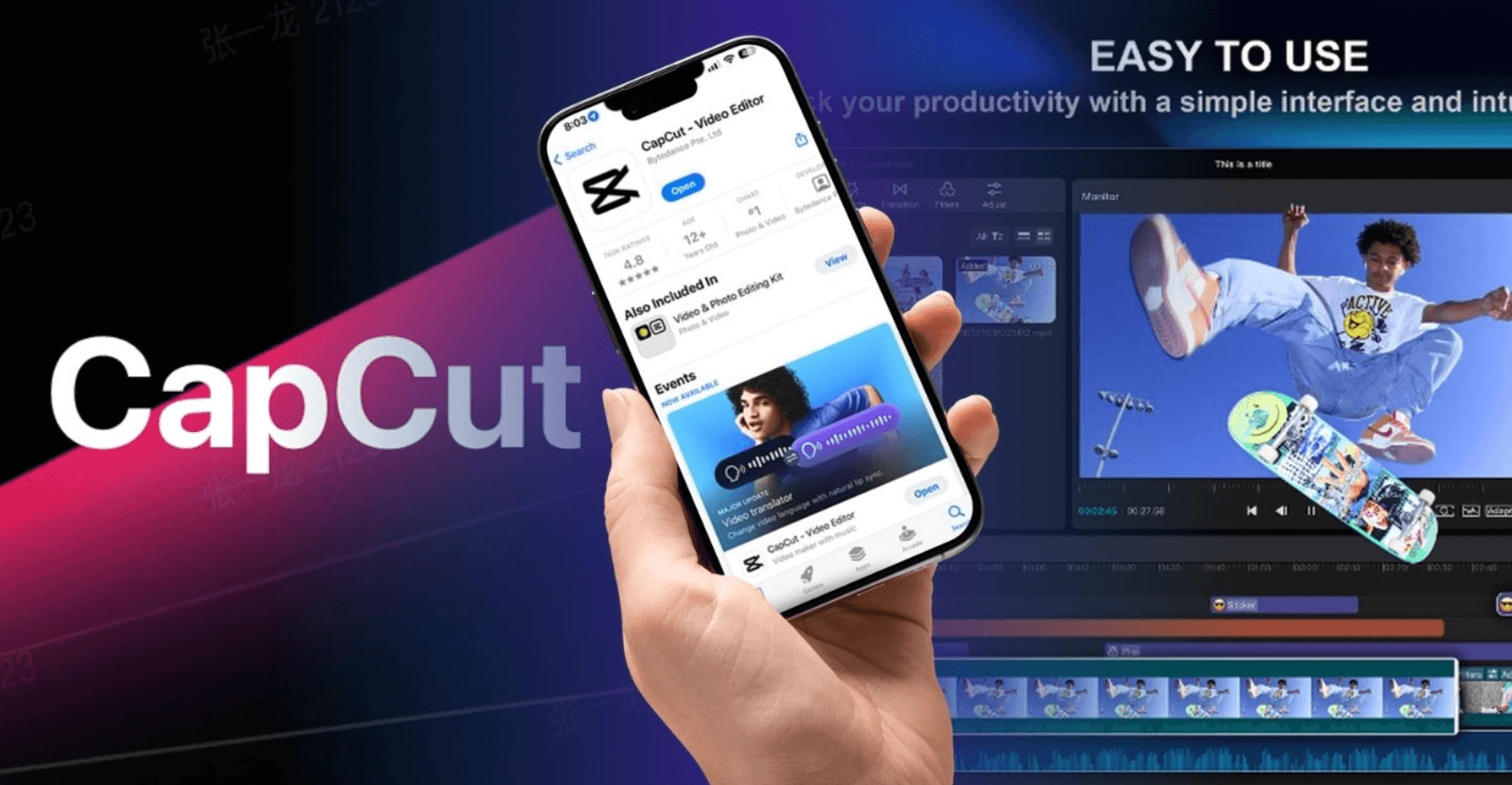
Start free, subscribe carefully, and CapCut becomes one of the fastest tools for social video.
Getting Started: Step by Step
- Start on the free plan. Download the mobile app from the official App Store or Google Play, or use the browser editor at capcut.com — no installation needed. On desktop, only download from capcut.com and avoid third-party mirrors. Sign in with a CapCut or TikTok account.
- Learn the core workflow. Import your clips, drop them on the timeline, and try the basics — trim, split, add transitions, and layer text. Spend your first session entirely on the free tools; they cover the vast majority of short-form needs.
- Add captions and audio. Run auto-captions to generate styled subtitles, then browse the free music and sound-effects library. These two features alone dramatically speed up social-ready edits.
- Explore templates and AI carefully. Try templates to produce trend-driven clips fast, but watch for the “Pro” tag — Pro-only templates and effects export with a watermark unless you subscribe. Check the export preview before committing to a template.
- Decide if you really need Pro. Only upgrade if you need 4K export, the full AI toolkit or watermark-free premium templates. If you do, subscribe via a platform where cancelling is easy (App Store or Google Play), confirm the live price in your account, and set a renewal reminder immediately.
- Protect yourself on billing. Keep your receipts and invoices, note your renewal date, and if you cancel, verify the subscription is actually inactive rather than assuming. Given the documented billing complaints, a little record-keeping goes a long way.
Tips for Getting Maximum Value
Stay on the free tier as long as it meets your needs — it is genuinely excellent, and most casual creators never need to pay. When you do upgrade, subscribe through the web only if it is truly the cheapest option after checking the live price, but strongly consider the App Store or Google Play route instead, because platform-level subscriptions are far easier to cancel than card-on-file web billing — and cancellation friction is CapCut’s single biggest complaint. Set a calendar reminder a few days before every renewal, keep your invoices, and confirm any cancellation actually took effect. Lean on the time-savers — auto-captions, the AI background remover and templates — for social-first content like tutorials and product demos, but avoid over-relying on the most popular templates if you want your videos to stand out. Watch for the “Pro” tag before you build an edit around a premium template, and if your work is long-form or color-critical, treat CapCut as a fast first-draft tool and finish elsewhere. Finally, if you are privacy-sensitive or bound by corporate IT policy, factor in CapCut’s ByteDance ownership before making it your default.
Future Outlook and Final Assessment
The short-form video market in 2026 is defined by AI-assisted editing becoming table stakes, and CapCut sits right at the center of that shift. Its core product keeps improving — the AI toolkit is deep, the templates are endless, and the free tier remains the best in the category. The trajectory of the tool itself is strong, and for the hundreds of millions of creators who stay free, CapCut earns its default status on speed and mobile polish alone.
The unresolved question is everything around the product. The billing and support infrastructure has not scaled with CapCut’s growth, the pricing restructure alienated long-time users, and the ByteDance regulatory overhang has not gone away. Until CapCut claims its Trustpilot profile, fixes cancellation and staffs real support, the paid experience will remain a gamble for a meaningful share of subscribers — even as the editor keeps getting better. A great product is only half the story; the other half is whether you can trust the company with your card.
Conclusion
CapCut is two things at once: one of the most capable free video editors ever made, and one of the most complained-about paid subscriptions in its category. The editing tools, AI features and templates are genuinely excellent, and for casual creators making TikToks, Reels and Shorts, the free tier is close to unbeatable. The moment money is involved, though, the picture changes — confusing pricing, weeks-long support, difficult cancellations and a ByteDance regulatory shadow are all real, documented concerns. Go in clear-eyed: enjoy the free tier freely, approach Pro carefully, protect yourself on billing, and CapCut can be one of the fastest, most powerful tools in your content workflow. Confirm the current price and terms on the official site before subscribing.
Ready to create scroll-stopping videos the smart way?
Explore more honest reviews, tutorials and tech comparisons to find the right gear for the way you work, travel and live — at World Of Tech, where we make everything easy.
👉 Try CapCut: https://worldoftech.space/capcut
👉 Our YouTube Channel: youtube.com/@world_tech79
👉 Our Facebook Fanpage: Facebook
👉 Our X (Twitter): @worldoftech79
Pricing, specifications and policy details in this review were verified against capcut.com and independent review sources (including Trustpilot, the Apple App Store and hands-on reviewer coverage) as of July 2026. CapCut’s pricing varies by region, device and promotion and changed significantly in early 2026, so confirm the current price and plan inside your account on the official site before subscribing. Competitor prices are approximate and subject to change.