
Every Mac owner eventually hits the same wall: one piece of software you absolutely need — QuickBooks Desktop, AutoCAD, a client’s internal tool, a legacy accounting system — simply doesn’t exist for macOS. Parallels Desktop has been the default answer to that problem since 2006, letting you run a full copy of Windows (or Linux, or another macOS instance) in a window right on your Mac desktop, with no rebooting and no separate PC. Owned by Alludo and officially authorized by Microsoft to run Windows 11 on Apple Silicon, it’s arguably the most polished virtualization tool on macOS — fast to set up, deeply integrated with the Mac interface through its “Coherence” mode, and backed by three editions built for home users, developers, and IT departments alike.
But 2026 is a very different market than the one Parallels dominated for years. Broadcom made VMware Fusion Pro completely free for personal, educational, and commercial use, and open-source UTM has matured into a genuinely usable alternative — both of which put real pressure on Parallels’ subscription pricing. At the same time, a wave of Trustpilot complaints about surprise auto-renewals and refused refunds has hit the brand’s reputation hard. This 2026 review walks through what Parallels actually does well, what it costs, how the independent review data breaks down, and whether it still earns its subscription price against free competitors.
Parallels Desktop Review 2026: Still the Best Way to Run Windows on a Mac?
Overview and Background
Parallels Desktop is a Type-2 hypervisor for macOS: it runs virtual machines as an application on top of macOS rather than replacing the operating system, letting Windows, Linux, or a second macOS instance run side by side with your native Mac apps. It’s built and maintained by Parallels International GmbH, a subsidiary of Alludo (formerly Corel), and remains Microsoft-authorized to run Windows 11 Pro and Enterprise on Apple Silicon Macs — a credential its main competitors don’t carry.
The product line splits into three editions sold as annual subscriptions: Standard for everyday users, Pro for developers and power users who need more virtual RAM and CPU cores per VM, and Business for organizations that need centralized deployment and volume licensing. A Standard Edition perpetual (one-time purchase) option also exists, though it doesn’t include ongoing major-version upgrades the way the subscription does. Parallels Desktop does not include a Windows license — you’ll need to buy or already own a valid Windows 11 license separately, though the setup wizard can walk you through purchasing one during installation.
Coherence mode blends Windows apps directly into the macOS desktop.
Why Parallels Desktop Stands Out in 2026
Genuinely two-click Windows setup: Parallels detects your Mac’s architecture, downloads the correct Windows 11 build automatically, and configures the VM’s resources for you — no manual ISO downloads, no driver hunting, and no command-line configuration required, which is a real gap versus UTM and even VMware Fusion’s slightly more manual flow.
Coherence mode is still the best UI blending on the market: Windows apps can run without a visible desktop or taskbar, appearing as ordinary windows on your Mac desktop and even showing up in the Mac Dock — the closest thing to making Windows software feel native on macOS.
Official Microsoft authorization: Parallels is specifically authorized by Microsoft to run the Arm build of Windows 11 Pro and Enterprise on Apple Silicon — a compatibility guarantee that free alternatives can’t officially claim, even if they work in practice.
Deep hardware integration: Mac camera, microphone, trackpad gestures, Touch Bar (on older models), and Bluetooth peripherals all pass through to the Windows VM with minimal configuration, along with drag-and-drop file transfer and a shared clipboard between macOS and Windows.
Real performance gains generation over generation: reviewers note that recent versions have meaningfully cut the battery drain of running a VM — a MacBook Pro that used to lose half its battery life running a VM now retains closer to 7 of its normal 9–10 hours, a substantial efficiency improvement.
Massive compatible software library: Parallels markets access to more than 200,000 Windows applications, spanning everything from Microsoft Office and QuickBooks to CAD suites like AutoCAD, SolidWorks, and Revit, engineering tools like MATLAB and ArcGIS, and CI/CD developer tooling.
Included phone and email support: unlike free hypervisors that rely on community forums, every paid Parallels edition includes unlimited phone and email support — valuable for less technical users who hit a setup snag.
Key Features and Technology
Parallels’ feature set is organized around its three editions, with capability scaling up as you move from Standard to Pro to Business.
Standard Edition: Everyday Use
Built for home and personal use, Standard Edition allocates up to 8GB of virtual RAM and supports up to 4 virtual machines running simultaneously on one Mac. It covers the core use case well: running Windows 11 or Windows apps, plus Linux and virtual macOS instances, with full access to Windows Excel features and other everyday productivity software.
Pro Edition: Developers and Power Users
Pro Edition raises the ceiling dramatically — up to 128GB of vRAM and 32 virtual CPUs per VM, support for up to 32 simultaneous virtual machines, and a full command-line interface for scripting VM creation and control. It integrates with developer workflows through Vagrant, Packer, and Jenkins, includes a Visual Studio Code extension for spinning up and managing VMs directly from your editor, and can run Intel binaries — including x86 Docker containers — inside Linux VMs on Apple Silicon Macs.
Business Edition: IT and Organizations
Business Edition adds centralized administration and license management, volume licensing for teams, provisioning through Mac management tools or the Parallels Deployment Package, business-friendly consolidated billing, and the ability to distribute a pre-configured corporate Windows VM to approved users — the features an IT department needs to deploy Parallels across dozens or hundreds of machines without touching each one individually.
Graphics, Peripherals, and File Sharing
Across all editions, Parallels supports USB pass-through for Windows-only devices like printers and scanners, shared folders and drag-and-drop between operating systems, and graphics acceleration tuned for demanding CAD and engineering software. Independent reviewers consistently rate its file-sharing implementation as one of its strongest technical features.
Pricing, Plans, and Package Structure
Parallels uses an annual subscription model across all three editions, with a perpetual (one-time purchase) option available only for Standard Edition. All plans renew automatically unless canceled — a point of significant customer friction covered in the Pros and Cons section below.
| Edition | Price | What It Is | Best For |
|---|---|---|---|
| Standard (Subscription) | ~$99.99/year | 8GB vRAM, up to 4 VMs, annual major-version updates included | Home users running everyday Windows apps |
| Standard (Perpetual) | ~$129.99 one-time | Same core features, no subscription, upgrades sold separately later | Buyers who want to avoid recurring billing entirely |
| Pro | ~$119.99/year | Up to 128GB vRAM, 32 vCPUs, CLI, dev-tool integrations, no perpetual option | Developers, testers, CAD/engineering users |
| Business | ~$149.99/year per seat | Centralized deployment, volume licensing, consolidated billing | IT teams deploying Parallels across an organization |
How Parallels Compares to Alternatives
| Factor | Parallels Desktop | VMware Fusion Pro | UTM |
|---|---|---|---|
| Price | $99.99–$149.99/year (or $129.99 perpetual, Standard only) | Free for personal, educational, and commercial use (approx., per Broadcom’s Nov. 2024 policy change) | Free, open-source (donations optional) |
| Setup ease | Two clicks; auto-downloads Windows 11 | Moderate; requires manually sourcing a Windows ISO | More technical; manual VM configuration expected |
| macOS integration | Best-in-class (Coherence mode blends apps into the Mac desktop) | Good, but reviewers report clipboard copy/paste limitations | Basic; functional but not seamless |
| Support | Unlimited phone/email included with subscription | Community forums and documentation only (free tier) | Community-driven, open-source project support |
| Microsoft authorization | Yes, officially authorized for Windows 11 on Apple Silicon | Not officially authorized, but widely used in practice | Not officially authorized |
| Billing model | Auto-renewing annual subscription (perpetual option limited to Standard) | No cost, no license key required | No cost, open-source license |
| Best for | Users who want the smoothest setup and are willing to pay for it | Budget-conscious users comfortable with a bit more manual setup | Technical users on Apple Silicon who want a free, open-source route |
Parallels vs. VMware Fusion Pro: this is now the hardest comparison for Parallels to win on price, because Broadcom made Fusion Pro entirely free for personal, educational, and commercial use in November 2024, and that policy remains in effect through 2026. Fusion Pro is a capable, mature hypervisor, but several longtime users note it lacks Parallels’ seamless clipboard copy-paste between macOS and Windows apps, and its setup process — sourcing your own Windows ISO — is a genuine extra step compared to Parallels’ automated installer. If your priority is saving money and you’re comfortable with slightly more manual setup, Fusion Pro is the strongest free alternative on the market today.
Parallels vs. UTM: UTM is a free, open-source hypervisor built specifically for Apple Silicon that has earned a loyal following, including among some Parallels users looking for a lighter, no-cost option. It trades Parallels’ polish and support for zero cost and full transparency, but it demands more comfort with manual VM configuration and doesn’t carry Microsoft’s official Windows 11 authorization. Reviewers on G2 rated Parallels and QEMU (the engine UTM builds on) equally on overall satisfaction, but consistently preferred Parallels for ease of use and support quality.
Pros and Cons
What Users Love
Rock-solid reliability for daily-driver use: Capterra reviewers rate Parallels 4.4 out of 5 across 148 verified reviews, with 89% positive sentiment, and G2 users specifically praise its performance for professional and engineering workflows.
Fastest setup in its category: the two-click Windows install process is repeatedly cited as the deciding factor for users who evaluated and switched away from competitors, particularly VMware Fusion’s clipboard limitations.
Meaningful battery-life improvements: recent versions have measurably reduced the power drain of running a VM, letting a MacBook Pro that used to lose roughly half its battery life running Windows now retain closer to 7 of its 9–10 normal hours.
Strong file-sharing and multi-platform workflow: G2 reviewers score Parallels 9.1 out of 10 on file sharing and 9.2 on multi-platform support, both notably higher than several competing remote-access and virtualization tools.
Real support responsiveness for technical issues: several App Store and community reviewers describe genuinely helpful troubleshooting from support staff who resolved complex, remote configuration issues without direct access to the user’s machine.
Limitations Worth Knowing
Very poor Trustpilot standing: Parallels currently holds a TrustScore of roughly 2.0 out of 5 across more than 1,700 reviews, driven overwhelmingly by complaints about auto-renewal charges applied without adequate advance warning and refund requests that get flatly denied — including from customers who hadn’t used the software in a year or more. This is a significant, well-documented pattern, not an isolated complaint.
Free competitors have closed the price gap: with VMware Fusion Pro now free for all use cases and UTM free and open-source, Parallels’ $99.99–$149.99 annual subscription is a much harder sell purely on price than it was even two years ago.
Significant disk space consumption: multiple reviewers report VM installations eating large, sometimes unexpected amounts of drive space, which becomes a real constraint on 256GB or 512GB Macs.
Games and DRM-heavy software often blocked: several major game publishers, including Riot Games, Epic Games, and Steam’s anti-cheat systems, actively block virtual machines, so buyers hoping to use Parallels for competitive gaming will run into hard walls with popular titles.
Upgrade pricing frustrates long-term owners: perpetual-license holders report that upgrading to support a new macOS or Windows version can cost roughly 50% of a new license, and some users say older hardware combinations become unstable or crash-prone after a few years without a paid upgrade.
Who Should Use Parallels Desktop
Professionals who need one specific Windows-only tool — accountants running QuickBooks Desktop, engineers running SolidWorks or AutoCAD, dental and medical practices running specialty Windows software — will get the fastest path from “new Mac” to “working software” with Parallels’ guided setup.
Developers who need multiple simultaneous VMs and CLI control benefit most from the Pro Edition’s higher resource ceilings and its integration with Vagrant, Packer, Jenkins, and VS Code.
IT departments deploying Windows access across a Mac fleet get real value from Business Edition’s centralized administration and volume licensing that free alternatives simply don’t offer.
Users who value phone support over community forums when something goes wrong will find Parallels’ included support meaningfully faster than troubleshooting through VMware or UTM’s community channels alone.
Who should look elsewhere: budget-conscious users who are comfortable with a slightly more manual setup should seriously evaluate VMware Fusion Pro first, since it’s now free for the same core use case. Highly technical users on Apple Silicon who want full transparency and don’t mind configuring VMs by hand may prefer UTM. And anyone who has been burned by unexpected subscription renewals in the past should read Parallels’ cancellation policy carefully and set a firm reminder before their renewal date, or choose the Standard Edition’s perpetual license instead.
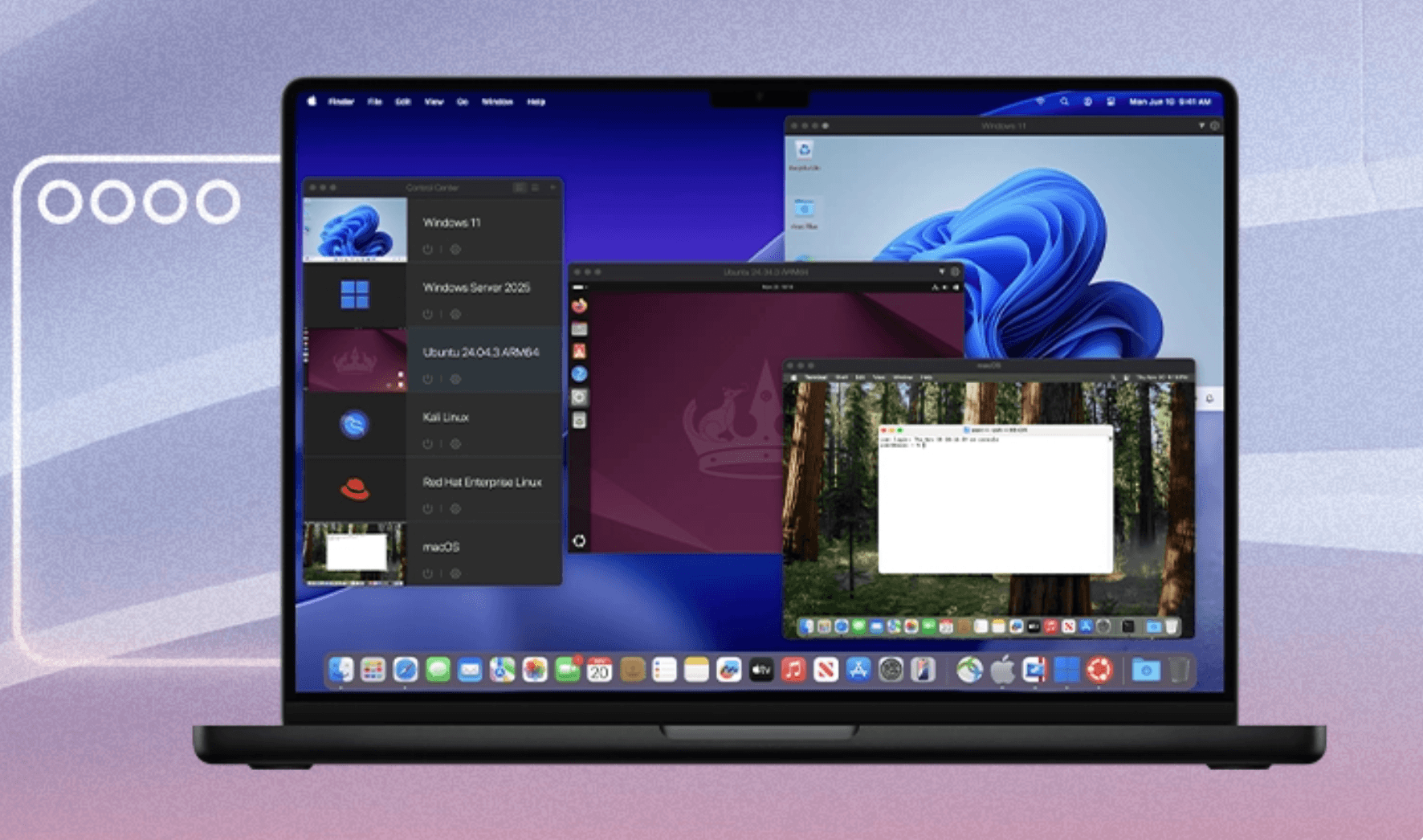
Pro Edition scales up to 128GB vRAM and 32 vCPUs for demanding engineering workloads.
Getting Started: Step by Step
- Check your Mac’s compatibility. Parallels Desktop requires macOS Big Sur (11) or later on Apple Silicon Macs, or macOS Catalina (10.15) or later on Intel Macs.
- Download the free 14-day trial. Test the actual software with your specific Windows applications before paying anything — this is the best way to confirm your critical apps run smoothly.
- Let the installer set up Windows automatically. Parallels detects your Mac’s architecture and downloads the appropriate Windows 11 build; you don’t need to source an ISO file yourself.
- Choose your edition based on real usage. Standard covers most everyday needs; only upgrade to Pro if you’re regularly hitting the 8GB vRAM or 4-VM ceiling, or need CLI/dev-tool integrations.
- Decide subscription vs. perpetual before you buy. If you want to avoid auto-renewal entirely, choose the Standard Edition one-time purchase rather than the annual subscription.
- Set a renewal reminder immediately after purchase. If you do choose the subscription, add a calendar alert two weeks before your renewal date — don’t rely on Parallels’ own renewal notification to reach you in time.
Tips for Getting Maximum Value
Get the most out of Parallels Desktop by treating storage management as an ongoing task rather than a one-time setup step: periodically compact your VM’s virtual disk to reclaim space that Windows and installed apps leave behind, and keep at least 40–60GB of free space on your Mac’s drive at all times to avoid performance degradation. If you’re on Pro or Business Edition and running multiple VMs, allocate vRAM deliberately rather than maxing out every VM’s resource pool — over-allocating starves your host Mac of memory it needs for its own apps. Take advantage of Coherence mode specifically for single-purpose Windows apps you use alongside Mac software daily; it’s a much smoother experience than switching to Windows’ full desktop view for quick, repeated tasks. Finally, before your subscription renews each year, actually check whether the upcoming macOS or Windows version changes justify the cost — if your current setup still runs everything you need, there’s no obligation to chase every point release.
Future Outlook and Final Assessment
Parallels’ competitive position in 2026 is genuinely more pressured than it has been in years. VMware’s decision to make Fusion Pro entirely free removed the single biggest reason to pay for a competing hypervisor — capability parity at zero cost — and that pressure isn’t going away. Parallels’ answer has to be continued investment in the areas free tools still can’t match: setup simplicity, deep macOS integration, Microsoft’s official authorization, and responsive human support. On the current evidence, the software itself still delivers on those fronts credibly. The billing and renewal practices are the real liability, and until Parallels’ Trustpilot trajectory improves, that reputation gap will keep sending price-sensitive and trust-sensitive buyers toward VMware Fusion Pro or UTM by default.
For buyers who value their time over saving roughly $100 a year, Parallels remains a strong, defensible purchase — provided you go in with eyes open about the auto-renewal pattern and set your own safeguards rather than relying on the company’s notifications.
Conclusion
If you need Windows software on a Mac and want the fastest, least technical path to get there, Parallels Desktop remains the strongest overall product on the market in 2026 — its Coherence mode, official Microsoft authorization, and included support are still meaningfully better than what free tools offer. But it’s no longer the only reasonable choice: VMware Fusion Pro’s shift to a completely free license has genuinely changed the calculation for anyone comfortable with a bit more manual setup, and UTM remains a solid free option for technically confident users. Whichever way you go, if you do choose Parallels’ subscription, protect yourself from the platform’s well-documented renewal issues by marking your calendar and reviewing your billing settings the moment you sign up — not the week your card gets charged.

Business Edition adds centralized deployment for IT teams managing Mac fleets.
Ready to run Windows on your Mac without the guesswork?
Explore more honest reviews, tutorials and tech comparisons to find the right gear for the way you work, travel and live — at World Of Tech, where we make everything easy.
👉 Shop Parallels Desktop: https://worldoftech.space/parallels
👉 Our YouTube Channel: youtube.com/@world_tech79
👉 Our Facebook Fanpage: Facebook
👉 Our X (Twitter): @worldoftech79
Pricing, specifications and policy details in this review were verified against parallels.com and independent review sources as of August 2026. Virtualization software pricing and features change frequently, so confirm current details on the official site before purchasing. Competitor prices for VMware Fusion Pro and UTM are approximate and subject to change.