
There’s a particular kind of panic that sets in the moment you realize a folder of family photos, a client’s final invoice, or a semester’s worth of research notes has vanished — deleted, formatted away, or trapped on a drive that suddenly refuses to mount. EaseUS has built one of the most recognized names in consumer data recovery around exactly that moment, with its flagship Data Recovery Wizard promising to scan a failing or emptied drive and hand your files back in three simple steps, no technical background required. Founded in 2004 and now claiming over 530 million users across 160+ countries, EaseUS has grown from a single recovery utility into a sprawling software house covering partition management, backup, PC transfer, and multimedia tools — but data recovery remains the product that put the company on the map and the one most people searching “EaseUS” actually want.
The pitch is simple: point the software at the drive where your data disappeared, run a scan, preview what’s recoverable, and get it back — all without sending a single file to the cloud. For everyday users who deleted something by accident or formatted a card without thinking, that’s a genuinely useful safety net. But EaseUS isn’t the only name in this space, its free tier is capped tightly enough to be more of a diagnostic tool than a real rescue plan, and its pricing has drawn real criticism for being steep relative to some rivals. This 2026 review walks through what EaseUS Data Recovery Wizard actually does, its full pricing structure, how it stacks up against Disk Drill and Stellar Data Recovery, the genuine pros and cons reported by real users, and exactly who should — and shouldn’t — reach for it first.
EaseUS Data Recovery Wizard Review 2026: Reliable Rescue Tool or Overpriced Convenience?
Overview and Background
EaseUS is a Chengdu, China-based software company that has been operating since 2004, and Data Recovery Wizard is its original and still its most downloaded product. The tool is built for one core scenario: your files are gone from a drive — through accidental deletion, a quick format, a corrupted partition, a crashed OS, or a device that’s gone RAW — and you need them back without physically damaging the drive further in the process. It isn’t a substitute for professional lab recovery on a physically failed drive with clicking heads or fried electronics, but for the much more common category of logical data loss, it’s designed to be approachable enough that, as EaseUS puts it, no technical skill is required.
The current release, version 20.1.0, recovers from more than 2,000 storage device types and over 1,000 file formats — photos, documents, videos, audio, emails, and archives — from internal and external hard drives, SSDs, USB flash drives, memory cards, cameras, and NAS devices. EaseUS reports more than 72 million Data Recovery users specifically, within a broader company user base north of 530 million across its full product line, which also includes Partition Master, Todo Backup, Todo PCTrans, and a growing multimedia suite (screen recording, video editing, an AI voice changer). That breadth matters for context: EaseUS isn’t a scrappy single-purpose utility, it’s a large, established software vendor with two decades of continuous releases behind this specific product.
EaseUS also carries real third-party credibility. It holds a Trustpilot score in the “Excellent” band with roughly 39,000 reviews at the time of writing, an average rating around 4.8–4.9 on G2 across its product catalog, and consistently positive coverage from outlets like CNET, TechRadar, and Softpedia going back years. It’s a legitimate, long-running company rather than a fly-by-night download — but as with any freemium recovery tool, the honest story includes how tightly the free tier is capped and how the pricing compares once you actually need to recover more than a token amount of data.
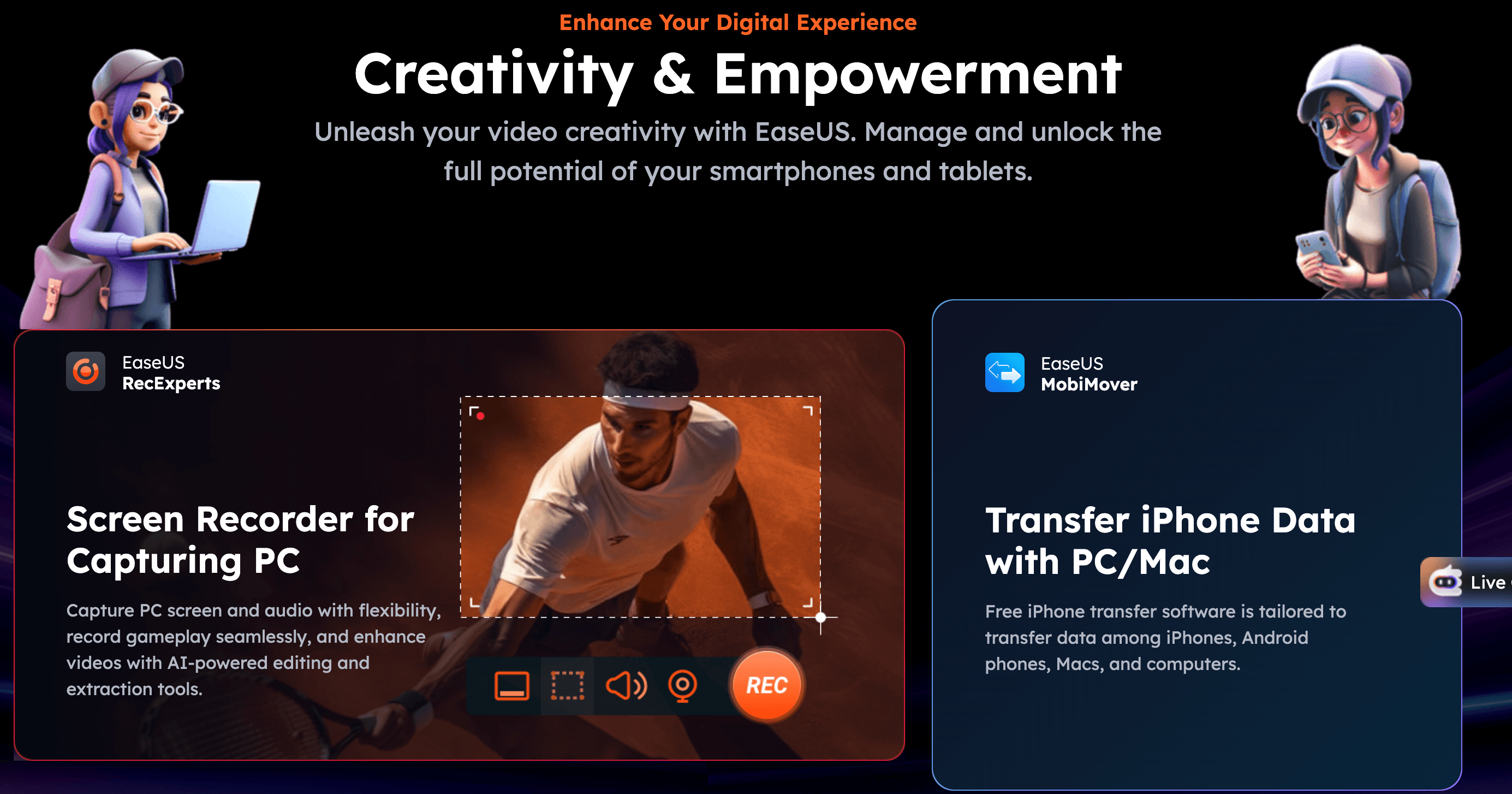
It’s also worth understanding where Data Recovery Wizard sits inside the wider EaseUS catalog, since the brand name covers a lot of ground. The same company sells Partition Master (disk partitioning and cloning), Todo Backup (system and file backup), Todo PCTrans (migrating data between PCs), and — more recently — a multimedia division that includes RecExperts screen recording, an AI voice changer called VoiceWave, and a video downloader. None of that is required to use Data Recovery Wizard, but it does mean EaseUS is a full software company with dedicated engineering resources behind its recovery engine, rather than a single product living or dying on its own, which is part of why the tool has kept receiving substantive updates release after release rather than stagnating.
Why EaseUS Stands Out in 2026
A genuinely simple three-step workflow: Select the location where data was lost, scan, preview, and recover — EaseUS keeps the interface uncluttered enough that reviewers consistently describe it as usable by “novices without professional skills.” There’s no maze of advanced settings you’re forced through before you can see what’s recoverable.
Broad device and format coverage: Version 20.1.0 supports recovery from USB drives, memory cards, internal and external hard disks, SSDs, cameras, and NAS devices, across more than 1,000 file types spanning photos, documents, videos, audio, and email archives. Few consumer tools cover this wide a spread of source devices in one app.
File preview before you pay for recovery: The scan and preview stage is free even on the trial, letting you confirm your actual files are recoverable — file names, folder structure, and thumbnails intact — before committing to a paid license. That removes a lot of the guesswork buyers face with recovery software generally.
Recover-while-scanning and pause/resume: On large or slow drives, EaseUS lets you start recovering files as soon as they’re found rather than waiting for the full deep scan to finish, and you can pause a scan and resume it later instead of restarting from zero.
Built-in file repair for common formats: Corrupted MP4/MOV videos and damaged JPEG photos can be repaired as part of the recovery process rather than requiring a separate tool, which is a meaningful convenience when the data loss involves partially damaged files rather than clean deletions.
Verified clean and offline: Independent installer scans (VirusTotal across dozens of engines, plus Avast and Windows Defender post-install checks) have turned up no malware flags, and recovery itself runs locally — no files are uploaded during the process, which matters when you’re handling sensitive personal or business data.
Strong, high-volume third-party trust signals: With roughly 39,000 Trustpilot reviews sitting in the “Excellent” band and an average rating near 4.8–4.9 on G2, EaseUS has one of the largest and most consistently positive review footprints in the entire data recovery category, alongside 30-day money-back and free tech support policies on paid tiers.
Key Features and Technology
Data Recovery Wizard is built around a handful of core capabilities. Here’s how the software actually breaks down under the hood.
Quick Scan and Deep Scan
A Quick Scan reads existing file system records and typically completes in seconds to a couple of minutes, catching recently deleted files still tracked by the drive’s index. A Deep Scan reads the storage surface sector by sector, which takes substantially longer on large or heavily fragmented drives but recovers a far wider range of lost data, including files from reformatted or RAW partitions. EaseUS runs both automatically as part of a single scan session, so users don’t need to know in advance which mode their situation requires.
Partition and Disk-Level Recovery
Beyond individual files, EaseUS handles disk partition problems directly — deleted, lost, unknown, uninitialized, offline, inaccessible, or RAW partitions can all be scanned and restored. This is a step up from many free recovery utilities that only handle file-level deletion and leave partition-level disasters (a botched Windows install, a corrupted GPT table) unaddressed.
Photo and Video Repair
Corrupted or partially recovered MP4, MOV, JPEG, and JPG files can be repaired within the same workflow, which is particularly useful for recovering footage from cameras and drones where files are often fragmented rather than cleanly deleted. EaseUS also offers standalone online and desktop repair tools (video, photo, document) for files that were already recovered elsewhere but won’t open.
Filtering, Preview, and Auto-Recover
Scan results can be filtered by file type, date, and name to cut through what’s often thousands of recoverable items after a deep scan, and files can be previewed before you commit disk space and license credit to restoring them. For large recovery jobs, an auto-recover mode restores files automatically to a chosen destination as the scan completes, rather than requiring someone to babysit the process.
Device and File System Compatibility
On the Windows side, EaseUS supports Windows 11, 10, 8, and 7, plus Windows Server editions from 2003 through 2025, and reads NTFS, exFAT, FAT12/16/32, ext2/ext3, HFS+, and ReFS file systems — a wide enough spread to cover most consumer PCs, external drives formatted for Mac compatibility, and older Linux-formatted media. A separate Mac-native build (Data Recovery Wizard for Mac) handles Apple’s file systems directly, including recovery from Time Machine backups, rather than relying on Windows-side compatibility layers. Minimum hardware requirements are modest — 200MB of free disk space and at least 1GB of RAM — so the tool runs comfortably even on older machines pressed into emergency recovery duty.

Pricing, Plans, and Package Structure
EaseUS Data Recovery Wizard Pro for Windows is sold as a one-time purchase per license term rather than a recurring subscription — you’re not auto-billed — but the term determines how long you get free upgrades. Pricing below reflects standard listed rates on easeus.com; the site frequently runs limited-time promotional pricing (including short-term discounted offers), so treat these as reference points and check the live pricing page before buying.
| Product | Price | What It Is | Best For |
|---|---|---|---|
| Free | $0 | Full scan and preview, recovery capped at 2GB | Testing whether your files are recoverable at all |
| Pro — One-Month | $69.95 (one-time) | Unlimited recovery, 1 PC, 1 month of free upgrades | A one-off emergency recovery job |
| Pro — One-Year | $99.95 (one-time) | Unlimited recovery, 1 PC, 1 year of free upgrades | Households or freelancers who may need recovery again within a year |
| Pro — Lifetime | $149.95 (one-time) | Unlimited recovery, 1 PC, lifetime free upgrades | Anyone who wants to own the tool long-term without repurchasing |
How EaseUS Compares to Alternatives
EaseUS competes in a crowded field. Two of its most frequently cited rivals are Disk Drill (CleverFiles) and Stellar Data Recovery — both approach licensing differently, which matters as much as the headline price.
| Factor | EaseUS Data Recovery Wizard | Disk Drill | Stellar Data Recovery |
|---|---|---|---|
| Free tier limit | 2GB recovery | ~100MB–500MB recovery (varies by version) | Scan and preview only, no free recovery |
| Entry paid price (approx.) | $69.95 one-time (1-month upgrades) | ~$79–89/year, or ~$149 lifetime | ~$89.99, typically per year |
| Licensing model | One-time fee, tiered upgrade windows | Annual subscription or one-time lifetime option | Primarily annual subscription |
| Independent rating | ~4.8–4.9/5 (Trustpilot, G2) | ~4.3/5 expert score (varies by reviewer) | ~4.2/5 (mixed across marketplaces) |
| Best for | Beginners wanting a clean, guided workflow with broad device support | Users who want a true one-time lifetime license and Mac-first support | Users needing bootable/crashed-OS recovery and encrypted drive support |
EaseUS vs. Disk Drill: Disk Drill’s free tier recovers less data upfront, but its lifetime license (around $149) lands close to EaseUS’s own lifetime tier while permanently avoiding any future upgrade-window question. Disk Drill also leans harder into extra utilities — disk health monitoring, duplicate finder, byte-level backups — that EaseUS handles through separate, standalone products instead of bundling into the recovery app itself.
EaseUS vs. Stellar Data Recovery: Stellar is generally regarded as stronger for advanced scenarios — bootable media for a crashed OS, encrypted (including BitLocker) drive recovery, and optical media — while EaseUS keeps a simpler, more beginner-oriented interface. Stellar’s free tier is more restrictive, offering scan and preview without any free recovery, which pushes casual users toward a paid tier faster than EaseUS does.
Pros and Cons
What Users Love
Genuinely easy to use: Across Capterra and Trustpilot, the most repeated praise is how intuitive the interface is, even for people who describe themselves as not tech-savvy — a real strength for a category that can otherwise feel intimidating during an already stressful moment.
Preserves original file names and folder structure: Multiple reviewers specifically call out that EaseUS restores files with their original names intact, unlike some competing tools that rename recovered files, which makes sorting through a large recovery far less tedious.
Reliable results on common data-loss scenarios: Formatted drives, accidental deletions, and emptied recycle bins are the scenarios reviewers consistently report success with, including recovery of photos, videos, and documents believed permanently gone.
Responsive customer support: Trustpilot reviews repeatedly single out fast, knowledgeable live chat support for license and activation issues, which matters for a product people often reach for during a stressful, time-sensitive situation.
Limitations Worth Knowing
Pricing draws real complaints: A recurring theme in Capterra reviews is that EaseUS “is a bit expensive” relative to the perceived value, particularly since the free version’s 2GB cap forces most users with meaningful data loss into a paid tier almost immediately.
Deep scans can be slow: On large or heavily damaged drives, the sector-by-sector deep scan takes significantly longer than the quick scan, and some independent testers have noted it can be slower overall than certain rivals — worth budgeting extra time for, especially on multi-terabyte drives.
Recovery rates aren’t guaranteed to hit marketed success figures: At least one independent hands-on test found the tool recovered under 80% of files from a formatted USB drive in one pass, below EaseUS’s own advertised success rate — a reminder that, like all recovery software, real-world results vary by device condition, file system, and how much the drive has been used since data loss.
Trial vs. free version confusion: Some Trustpilot reviewers report confusion between the free version (2GB recovery) and the trial version (scan/preview only, no recovery) on the download page, leading to frustration when a “free” download turns out not to actually restore files without payment.
Who Should Use EaseUS
Everyday users who deleted or formatted something by mistake: If the scenario is accidental deletion, an emptied recycle bin, or a quick-formatted card or USB drive, EaseUS’s guided workflow and clean preview make it one of the friendlier options for someone without technical background.
Photographers and videographers dealing with corrupted media: The built-in photo and video repair, combined with support for RAW camera formats and common video containers, makes it a solid fit for recovering and fixing footage from cameras, drones, and action cams.
Small businesses that need occasional, self-serve recovery: Freelancers and small teams who don’t want to keep an IT recovery contract on retainer but occasionally lose a drive or a client folder will find the one-time-fee, lifetime-upgrade tier a reasonable insurance policy.
Who should look elsewhere: if your drive is physically failing — clicking, not spinning up, or not detected by the system at all — no consumer software will safely recover it, and running repeated deep scans on a dying drive can make things worse; go straight to a professional lab or EaseUS’s own manual recovery service instead. Budget-conscious users who only need to recover a handful of small files may also find the free 2GB tier sufficient and never need to pay at all.
Getting Started: Step by Step
- Stop using the affected drive immediately. Any new data written to it can overwrite the space where your deleted files still exist, reducing recovery chances.
- Download and install EaseUS Data Recovery Wizard on a different drive than the one you’re recovering from, if possible, to avoid overwriting data during installation.
- Select the affected location. Choose the specific drive, partition, or folder where the data was lost, including lost or unrecognized partitions if they appear.
- Run the scan. Let the Quick Scan complete first, then allow the Deep Scan to continue in the background if your files aren’t found right away — you can pause and resume as needed.
- Filter and preview results. Use the file-type and date filters to narrow thousands of scan results down to what you actually need, and preview files before committing to recovery.
- Recover to a different drive. Always restore files to a separate physical drive from the one you scanned, never back to the same disk, to avoid overwriting other recoverable data.
Tips for Getting Maximum Value
Run the free scan the moment you notice data loss rather than waiting, since every hour of continued drive use — including simply browsing files or letting background apps write to disk — reduces the odds of a clean recovery; the scan and preview cost nothing, so there’s no reason to delay confirming what’s recoverable. If the preview shows the files you need, buy the license immediately rather than shopping around for a coupon, since the risk of overwriting data while you wait usually outweighs a modest discount. For photographers and videographers, run the file-repair pass on any files that come back partially corrupted rather than assuming a failed preview means the file is unrecoverable — EaseUS’s repair tools can often fix header corruption that a plain recovery pass leaves broken. And if you’re recovering a device you plan to keep using afterward — a laptop drive, a family NAS — pair the recovery with a proper backup routine going forward (EaseUS’s own Todo Backup, or any scheduled backup tool) so you’re not relying on recovery software as your only safety net next time. If your first Deep Scan pass comes back incomplete or misses files you know should be there, it’s worth running a second scan before assuming the data is gone for good — several user reports describe a first scan surfacing only Recycle Bin-level deletions while a second pass on the same drive picked up formatted or deeper file-system-level losses that the first pass missed, so don’t treat one scan as the final word if the outcome doesn’t match what you expected.
Future Outlook and Final Assessment
EaseUS has kept up a steady release cadence for two decades, and the 20.1.0 update continues that pattern with expanded fragmented-file recovery and ZFS file system support — signs of a company still actively investing in its core recovery engine rather than coasting on an established name. The broader EaseUS ecosystem (backup, partition management, PC transfer, and a growing AI-powered multimedia lineup) also gives the company diversified revenue beyond recovery alone, which is a reasonable signal of long-term stability for anyone worried about buying into a tool that might be abandoned.
The category itself isn’t going anywhere either — as storage gets cheaper and people accumulate more irreplaceable digital files, accidental deletion and drive corruption remain everyday risks, and demand for approachable recovery software should hold steady. The main pressure on EaseUS going forward is competitive: rivals like Disk Drill continue pushing lifetime pricing and bundled utilities, and if EaseUS’s per-tier pricing keeps drawing “expensive” complaints, it may need to sharpen its value proposition rather than lean solely on brand recognition and review volume.
Conclusion
If you’ve lost files to deletion, formatting, or a corrupted partition — and the drive itself is still healthy — EaseUS Data Recovery Wizard offers one of the least intimidating paths back to your data, with a free preview that lets you confirm success before you pay a cent. It’s not the only tool worth considering, and shoppers focused purely on price should weigh Disk Drill’s lifetime license or Stellar’s advanced-scenario strengths before committing. But for the most common data-loss situations, backed by two decades of development and a large, genuinely positive user base, EaseUS earns its place as a first call rather than a last resort.
Lost files you thought were gone for good?
Explore more honest reviews, tutorials and tech comparisons to find the right gear for the way you work, travel and live — at World Of Tech, where we make everything easy.
👉 Shop EaseUS Data Recovery Wizard: https://worldoftech.space/easeus
👉 Our YouTube Channel: youtube.com/@world_tech79
👉 Our Facebook Fanpage: Facebook
👉 Our X (Twitter): @worldoftech79
Pricing, specifications and policy details in this review were verified against easeus.com and independent review sources (Trustpilot, G2, Capterra) as of July 2026. Data recovery software pricing and promotions change frequently, so confirm current details on the official site before purchasing. Competitor prices are approximate and subject to change.