
If you’ve spent any time on TikTok, Instagram Reels, or YouTube Shorts in the past few years, you’ve almost certainly seen a video edited in CapCut — even if you didn’t know it. Built by ByteDance, the same company behind TikTok, CapCut has grown from a niche mobile editing app into one of the most widely used video and photo editors on the planet, with over a billion downloads on Google Play alone. It combines a genuinely fast, beginner-friendly timeline editor with an expanding suite of AI tools: auto-captions, background removal, text-to-speech, AI image and video generation, and hundreds of thousands of ready-made templates that turn a folder of raw clips into a polished short in minutes.
CapCut’s pitch is simple: professional-looking video without a professional learning curve, on desktop, web, or mobile, for free at the entry level. But 2026 has been a turbulent year for the platform — a quiet pricing restructure roughly doubled the cost of its top tier, and a mountain of billing and cancellation complaints has left CapCut with one of the widest gaps between app-store satisfaction and independent review-site sentiment of any major creative tool. This 2026 review walks through what CapCut actually does well, its real pricing today, how it stacks up against InShot, Adobe Premiere Rush, and DaVinci Resolve, the honest pros and cons, and exactly who should — and shouldn’t — build their workflow around it.
CapCut Review 2026: The AI Video Editor Behind Millions of TikToks — Pros, Pricing, and the Billing Complaints You Should Know
Overview and Background
CapCut launched as a mobile-first spin-off of ByteDance’s internal editing tool Jianying, initially built to make it effortless for TikTok creators to cut, caption, and publish short-form video straight from their phones. It expanded quickly into a genuine cross-platform suite — CapCut Mobile, CapCut Desktop, CapCut Online (browser-based), and CapCut Pad — while layering in an increasingly ambitious AI stack that now includes an AI video generator, AI image generator, AI voice cloning, background and object removal, and even a conversational “Video Studio” agent that can build a rough cut from a chat prompt.
Today CapCut isn’t a single app so much as an ecosystem: the core editor sits alongside sister products like Dreamina (AI image and video generation) and Pippit (a creative agent for marketing content), all under the same ByteDance umbrella. Scale is CapCut’s clearest strength — over a billion downloads on Google Play, a 4.6/5 rating from more than 1.1 million reviews on the Apple App Store, and a template library north of 200,000 designs. That reach makes it the default editor for a huge share of casual creators, small business marketers, and social media managers.
Part of what makes CapCut interesting to track in 2026 is how far it has moved beyond its original short-form roots. The desktop version now competes for attention against entry-level professional editors, the image-editing suite functions as a standalone product for photographers and marketers who never touch video, and the addition of Commerce Pro shows a deliberate push into e-commerce product-video workflows — a market historically served by dedicated, more expensive tools. For a company that started by making TikTok edits faster, that’s a meaningfully broader footprint than most casual users realize.
But 2026 also brought a structural shake-up. In early 2026, CapCut quietly restructured its paid tiers: the plan long known simply as “CapCut Pro” (around $9.99/month) was renamed Standard, and a new, more expensive Pro tier was introduced above it at roughly $19.99/month, adding 4K/HDR export, a much deeper AI toolkit, and far more cloud storage. The change wasn’t announced as a price increase, and it landed alongside a wave of independent-review complaints about billing transparency and subscription cancellation — both of which are covered honestly below.
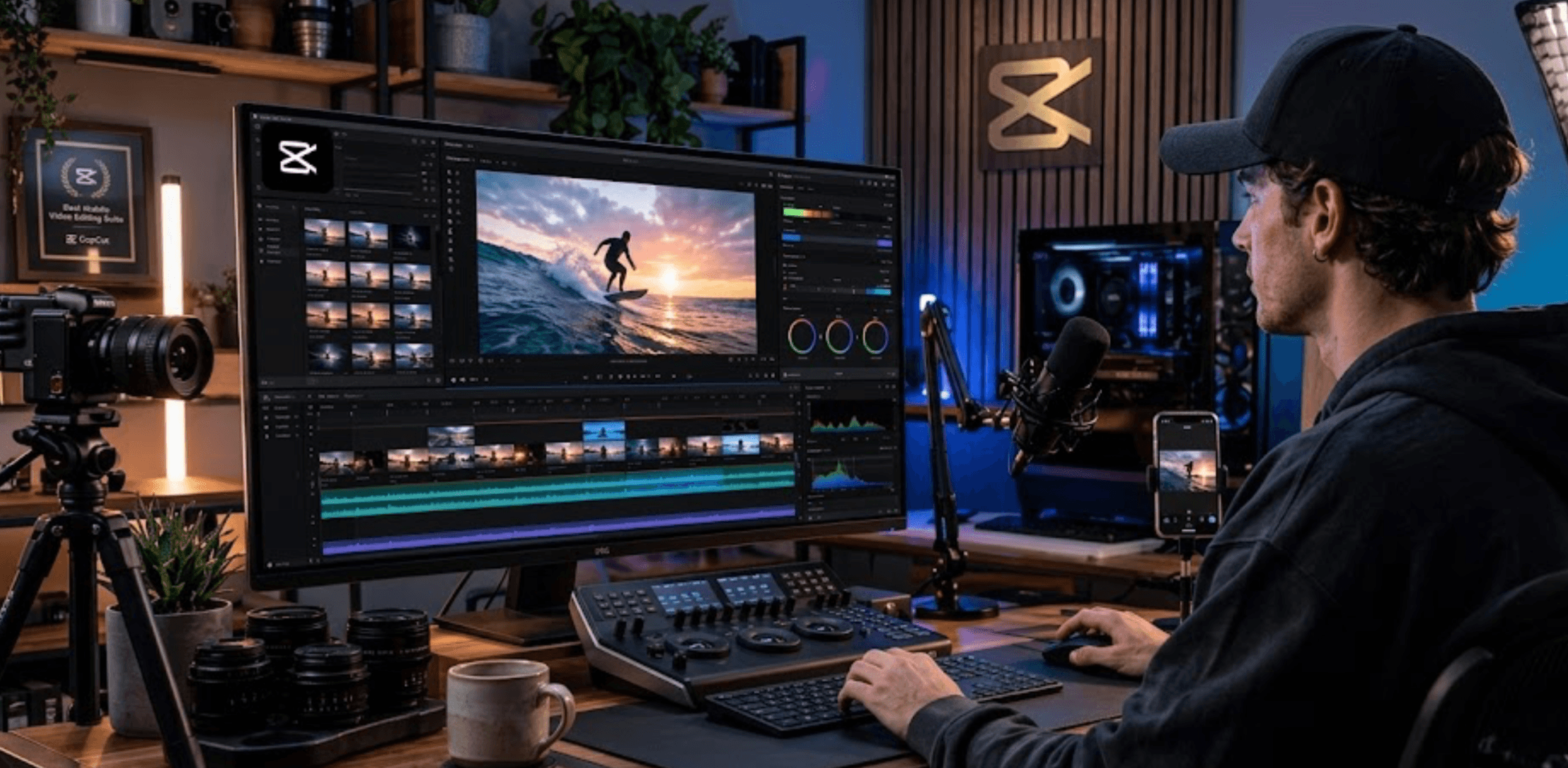
Why CapCut Stands Out in 2026
Genuinely fast for social-first editing: CapCut’s entire interface is optimized around the workflow of shooting on a phone and publishing to TikTok, Reels, or Shorts the same day. Trim, caption, add trending sounds, and export in a fraction of the time it would take in a traditional desktop NLE — reviewers and forum users consistently point to this speed as CapCut’s single biggest advantage over Premiere Pro or DaVinci Resolve for short-form work.
Auto-captions that are actually accurate: Speech-to-text captioning is one of CapCut’s most consistently praised features across app-store reviews, Product Hunt, and independent write-ups. It handles multiple languages, syncs cleanly to speech, and comes with dozens of pre-styled caption templates — a task that would otherwise mean manually typing and timing every line.
A genuinely deep AI toolkit for a mobile-rooted app: Background and object removal, AI image and video generation, voice cloning, AI dialogue scenes, camera tracking, and a growing set of Dreamina-powered generative tools now sit inside the same app that started as a TikTok cutter. Few free-tier editors bundle this much generative AI without leaving the platform.
A template library that removes the blank-page problem: With well over 200,000 templates spanning social, business, holiday, and effects categories, CapCut lets users start from a proven structure and swap in their own footage — genuinely useful for creators and small businesses who need to publish on a schedule rather than design from scratch every time.
True cross-platform continuity: Projects move between CapCut Mobile, Desktop, Web, and Pad, so a rough cut started on a phone between shoots can be finished on a laptop later. Reviewers who run hybrid workflows describe editing long-form content in a desktop NLE, then finishing short vertical clips in CapCut for captions and trend effects.
A capable free tier: The free plan includes cut-and-split editing, multi-track timeline editing, keyframe animation, chroma key, basic stabilization, AI voiceover text-to-speech, and 1080p exports — genuinely enough to cover an everyday short-form content workflow without paying anything, which is unusual among modern AI-heavy editors.
Massive install base and reach: With more than a billion downloads on Google Play and a 4.6/5 App Store rating from over 1.1 million reviewers, CapCut has one of the largest and most active user bases of any editing app — a scale that funds a rapidly expanding feature set and near-constant template refreshes.
Key Features and Technology
CapCut’s feature set has grown far beyond simple trimming, and the pace of new releases has been genuinely fast — new AI models and tools have shipped roughly every few weeks throughout 2026. Here’s how the platform breaks down today, organized by the pillars most users actually rely on day to day.
Core Timeline Editing
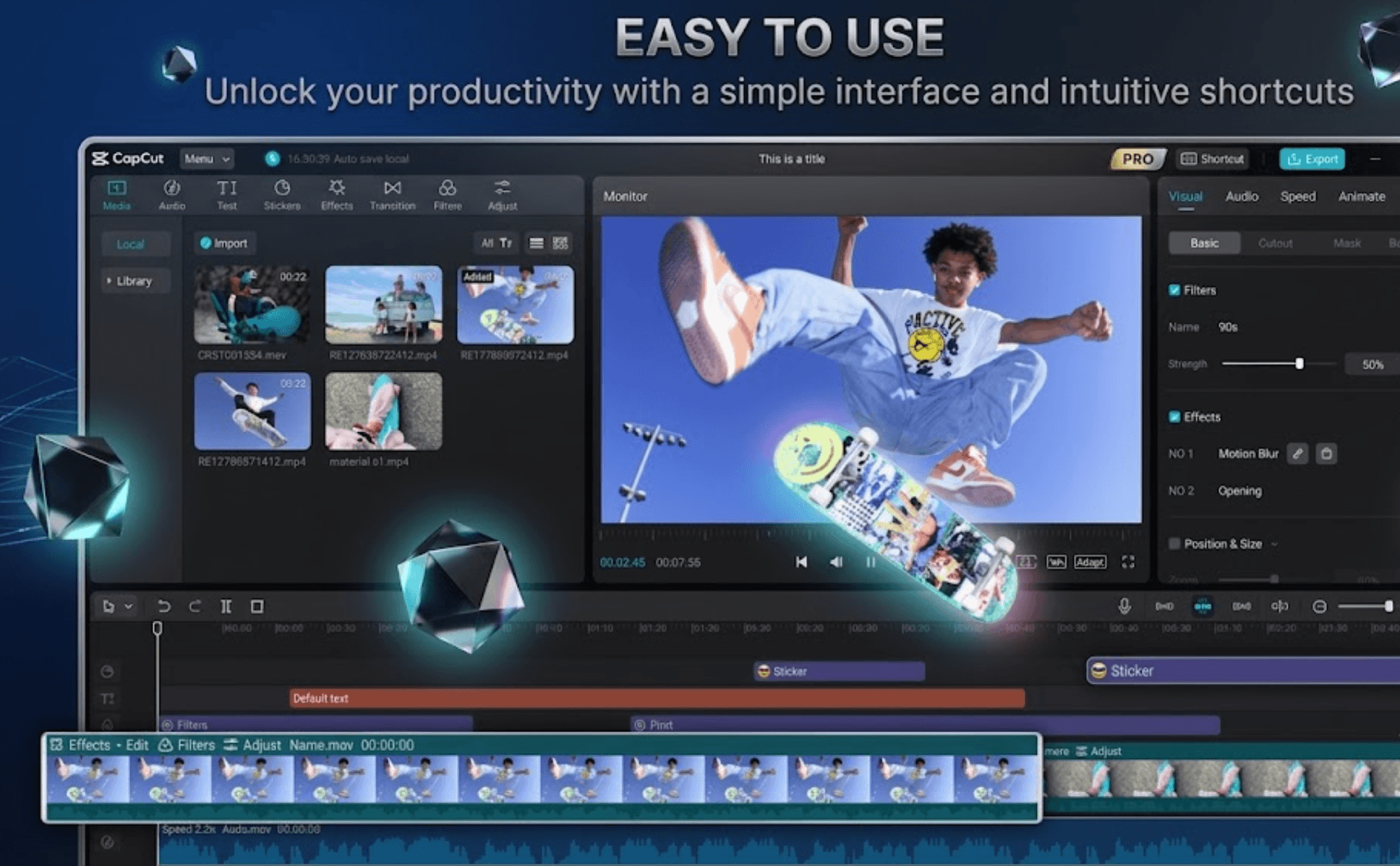
A multi-track timeline supports cutting, splitting, layering, transitions, keyframe animation, speed ramping, and chroma key compositing. It’s approachable enough for a first-time editor but has enough depth — motion tracking, animation curves — that CapCut Desktop is increasingly being compared to entry-level professional NLEs rather than a “phone app with extra steps.”
AI Design, Video, and Image Generation
CapCut’s AI Design tool generates layouts for social posts, covers, and marketing materials from a prompt. The AI video and image generators — powered in part by the sister Dreamina platform, including newer Seedance and Nano Banana Pro models — turn text or reference images into custom visuals and clips. A conversational “Video Studio” agent can rough out an entire video, including style and AI avatar, from a chat exchange. These generative tools run on a credit system layered on top of the subscription, so heavy generative use can add cost beyond the base plan.
Text, Audio, and Captioning
Auto-caption generation, speech recognition, text-to-speech with natural-sounding voices, custom AI voice cloning, background noise removal, and a voice enhancer round out CapCut’s audio suite. This is consistently the highest-praised part of the product in independent reviews — the accuracy of auto-captions and the naturalness of the AI voiceovers are frequently cited as reasons users stick with CapCut over lighter competitors like InShot.
Image Editing Suite
Beyond video, CapCut ships a full standalone image toolkit: one-click background removal with no watermark, AI resolution/quality enhancement, resizing for different aspect ratios, a meme generator, AI text and people removal, and AI inpainting. It’s a meaningful reason some users adopt CapCut purely for photo work, not video.
Templates and Creative Assets
CapCut’s template library spans Reels/TikTok, general social media, effects-driven templates, business/promo templates, and seasonal or industry-specific designs. Paired with a royalty-free asset library reported at over 12 million clips of music, sound effects, and stock footage, it’s built to eliminate the blank-canvas problem for creators who need to publish frequently.
Pricing, Plans, and Package Structure
CapCut runs a freemium model across four tiers: Free, Standard, Pro, and Team, with custom Enterprise pricing for large organizations. Importantly, CapCut does not publish a single universal checkout price — its own help documentation states that the final amount can vary by region, device, account, active promotion, and platform (web checkout is consistently cheaper than the iOS or Android app-store equivalent, which run several dollars higher due to platform fees). The figures below reflect widely reported 2026 web pricing; always confirm the exact number on your account’s in-app “Upgrade” screen before subscribing.
| Plan | Price (USD) | What It Is | Best For |
|---|---|---|---|
| Free | $0 | Full multi-track editor, 1080p export, templates, basic AI voiceover, auto-captions | Casual creators and everyday short-form video |
| Standard | ~$9.99/month (monthly only) | Watermark-free exports, expanded premium templates | Mobile creators who mainly need clean exports |
| Pro | ~$19.99/month or ~$179.99/year (≈$15/mo) | 4K/HDR export, full AI toolkit, ~1TB cloud storage, monthly AI credit allowance | Power users leaning on generative AI and 4K delivery |
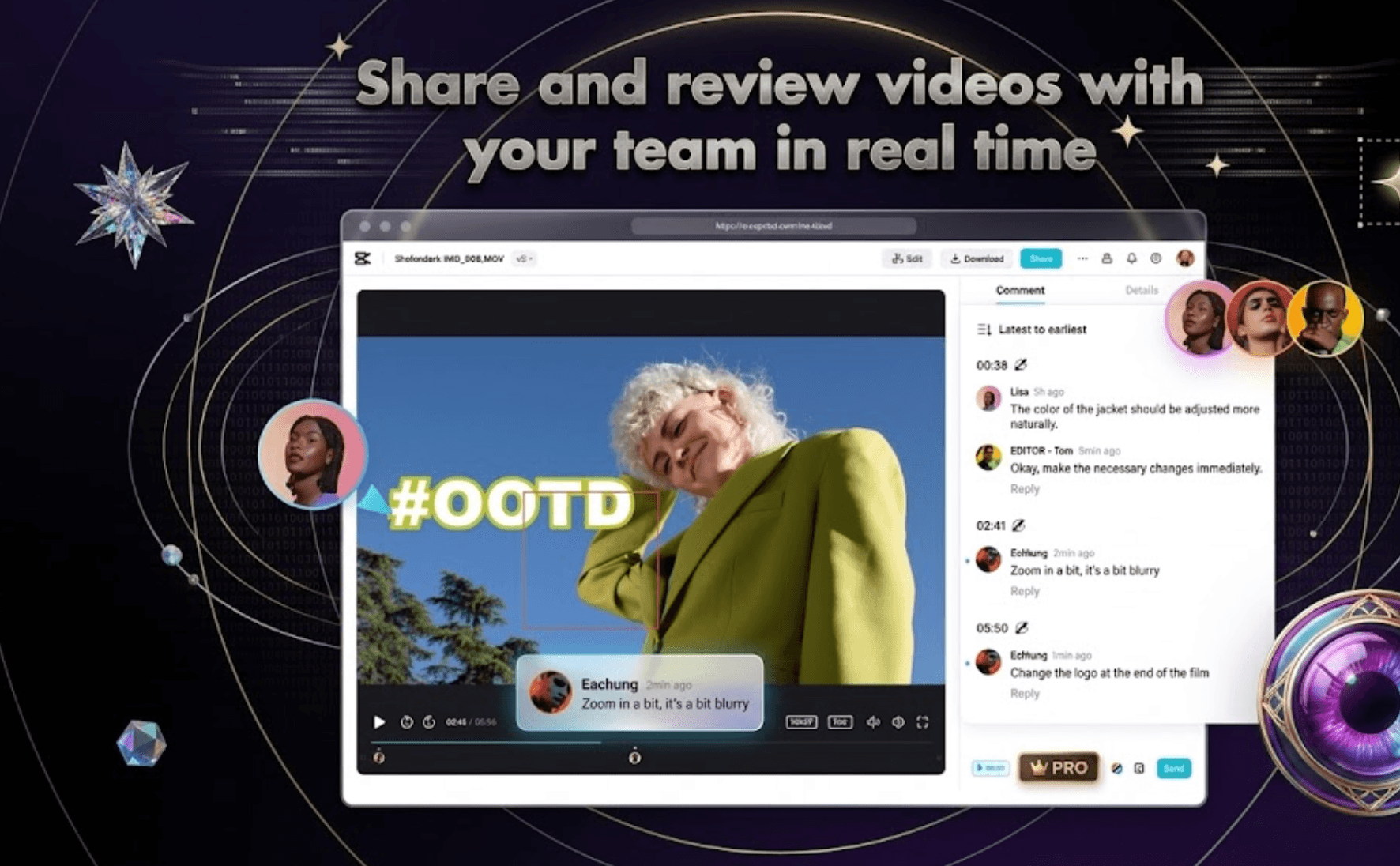
| Team | ~$24.99/user/month (varies by seats/region) | Shared brand kits, team workspace, collaborative asset libraries | Agencies and in-house marketing teams |
| Enterprise | Custom | Custom seats, licensing, and support terms | Larger organizations with bespoke needs |
| Extra AI credits | From ~$4.99 / 100 credits | Top-up credits for generative AI tools beyond the plan allowance | Heavy generative AI users who exceed monthly credits |
How CapCut Compares to Alternatives
| Factor | CapCut | InShot | Adobe Premiere Rush |
|---|---|---|---|
| Platform focus | Mobile, desktop, web, pad | Mobile-first | Mobile + desktop, Creative Cloud-tied |
| Entry price | Free; Pro ~$19.99/mo | ~$4.99/mo (approx., varies) | Bundled in Creative Cloud plans (approx.) |
| AI toolkit depth | Extensive — captions, voice, image/video gen | Basic AI features only | Growing, tied to Adobe’s Firefly/Sensei tools |
| Editing speed for short-form | Very fast, template-driven | Fastest for very simple edits | Slower; more deliberate professional workflow |
| Template library | 200,000+, broad categories | Smaller, simpler set | Limited built-in templates |
| Independent review sentiment (billing) | Trustpilot ~1.2/5, heavy billing complaints | Mixed, fewer high-profile billing disputes | Tied to broader Adobe subscription complaints |
| Best for | Full-featured social + AI content pipeline | Fast, lightweight one-off social edits | Creators already inside Adobe’s ecosystem |
vs. InShot: InShot is lighter, simpler, and often faster for genuinely quick one-off social edits, and its pricing model tends to be more straightforward. CapCut pulls ahead once a project needs more than trimming and filters — deeper AI captioning, generative tools, a far larger template library, and true cross-device project continuity — but that extra depth comes with a steeper subscription and a more complex account-management experience.
vs. Adobe Premiere Rush: Rush leans on tight integration with Adobe Creative Cloud and a more traditional, precise timeline for users who already live inside Adobe’s tools. CapCut generally wins on raw speed-to-publish for short-form content and offers a noticeably deeper free tier and AI toolkit, but Rush’s workflow and color/audio precision hold up better for creators producing longer-form or brand-sensitive content.
vs. DaVinci Resolve: Resolve’s free tier is famously powerful for color grading and professional-grade editing, with no subscription and no billing risk at all — a meaningful advantage given CapCut’s reputation issues. But Resolve has a genuinely steeper learning curve and is far slower for the kind of caption-heavy, trend-driven short-form video CapCut was purpose-built for. Creators choosing between the two are really choosing between editing philosophy and output type, not just price.
Taken together, the comparison isn’t really “which editor is best” — it’s about matching the tool to the output. Anyone shipping daily short-form content will find CapCut’s speed and AI toolkit hard to replace. Anyone weighing subscription risk as heavily as feature depth has legitimate reasons to look at a perpetually free option like Resolve, or a lighter, cheaper app like InShot, instead.
Pros and Cons
What Users Love
Speed for short-form content: The single most repeated praise across app-store reviews, forums, and third-party write-ups — CapCut gets a TikTok- or Reels-ready video out the door faster than almost any competing editor.
Accurate auto-captions and voice tools: Speech-to-text captioning and AI voiceover quality are called out repeatedly as standout features, saving significant manual timing and typing work.
Strong free tier: Multi-track editing, 1080p export, and basic AI tools are genuinely usable at zero cost — a meaningful contrast with editors that gate core functionality entirely behind a paywall.
Stability on supported devices: Multiple reviewers describe the app as stable and rarely crashing mid-edit, with intuitive, easy-to-find core tools.
Huge, varied template library: Reviewers specifically praise the range — from clean, minimal designs to AI-generated one-off templates — as a genuine creative accelerator rather than cookie-cutter filler.
Limitations Worth Knowing
Severe billing and cancellation complaints: This is CapCut’s biggest independent-review problem. Trustpilot shows a rating around 1.2/5 — a dramatic gap from the 4.6/5 App Store score — driven almost entirely by reports of difficulty cancelling subscriptions, being charged after cancellation, and being billed unexpected amounts during free trials or regional currency conversion. This gap between in-app satisfaction and account/billing satisfaction is unusually wide and should be weighed seriously before subscribing.
Support responsiveness is widely criticized: A recurring theme across reviews is slow or unhelpful customer support, with some users describing automated, canned responses to billing disputes rather than resolution from a real person.
2026 pricing restructure roughly doubled Pro’s cost: The top tier moved from about $9.99/month to about $19.99/month without a formal price-increase announcement, and some existing annual subscribers were rolled onto the new rate at renewal — a change that caught a number of long-time users off guard.
Pricing is opaque and inconsistent by region/platform: CapCut does not publish a single official price sheet; the final checkout amount depends on region, device, and active promotions, and app-store checkout runs noticeably higher than the web app. Some users report significant discrepancies between the advertised USD price and what they were actually charged in local currency.
Broad content-usage terms: CapCut’s terms of service include a broad license to use uploaded content, which is a legitimate concern for creators working on confidential or client-sensitive material and worth reading before uploading unreleased work.
Not built for deep professional post-production: Color grading depth, advanced audio mixing, and precision timeline control still lag behind dedicated professional tools like DaVinci Resolve or Premiere Pro — CapCut trades that depth for speed, which is the right call for short-form content but the wrong one for demanding narrative or broadcast work.
Who Should Use CapCut
Social media creators and influencers: If your output is TikToks, Reels, and Shorts on a near-daily cadence, CapCut’s speed, captioning, and template library are hard to beat at the price.
Small business and marketing teams: The template-driven workflow and e-commerce-specific tooling (like CapCut Commerce Pro) make it a fast way to keep a content calendar filled without hiring a dedicated editor.
Beginners who want results today, not in three weeks: The learning curve is genuinely gentle compared to Premiere Pro or DaVinci Resolve, and the free tier is generous enough to fully evaluate the workflow before paying anything.
Hybrid editors pairing it with a desktop NLE: A growing pattern among professionals is editing long-form content in Premiere Pro or Resolve, then finishing short vertical clips in CapCut purely for captions, trend effects, and fast export — using CapCut as a finishing tool rather than a primary editor.
Who should look elsewhere: if precise, predictable billing matters as much as the editing experience — for example, agencies managing multiple client subscriptions, or anyone who has been burned by subscription cancellation issues before — the Trustpilot pattern here is a real, documented risk worth weighing, and a perpetually free tool like DaVinci Resolve removes that risk entirely. Colorists, narrative filmmakers, and anyone needing frame-accurate professional post-production will also outgrow CapCut’s editing depth quickly.
Getting Started: Step by Step
- Create a free account. Sign up via email, Google, or Apple ID at capcut.com or in the mobile app — no credit card required for the free tier.
- Start with the free plan first. Import a real project and test the timeline editor, auto-captions, and export quality before considering an upgrade.
- Browse templates for your platform. Filter by TikTok/Reels, business, or effects categories, and swap in your own footage and text rather than starting from a blank timeline.
- Try the AI tools that matter to your workflow. Auto-captions and background removal are the most consistently well-reviewed; test these before relying on the newer generative video/image tools for critical work.
- If upgrading, subscribe through the web app. Screenshot the exact plan, price, and billing cycle shown at checkout, and confirm whether it’s monthly or annual before entering payment details.
- Know your cancellation path before you need it. Given the volume of cancellation complaints, locate the subscription-management settings immediately after subscribing rather than waiting until you want to cancel.
Tips for Getting Maximum Value
Treat the free tier seriously before paying anything — it covers a genuinely complete short-form workflow, including 1080p export and basic AI tools, so there’s little reason to subscribe until you specifically need 4K/HDR, unlimited premium templates, or the deeper generative AI toolkit. If you do upgrade, always check the web app’s checkout price first since it’s consistently the cheapest entry point, and keep a screenshot of your plan and price at the point of purchase in case a billing dispute arises later — this single habit resolves the most common category of complaint seen across independent review platforms. Pace your use of AI-credit-gated generative tools across the billing cycle rather than front-loading them, since credits reset monthly and top-ups add real incremental cost. For anything involving confidential client footage or unreleased brand material, read the content-license terms before uploading, and consider keeping final masters on local storage rather than relying solely on CapCut’s cloud sync. Finally, if you’re pairing CapCut with a desktop NLE, standardize on exporting a clean, uncaptioned vertical cut from your primary editor and doing only the fast, trend-specific finishing work — captions, zooms, trending effects — inside CapCut; trying to fully round-trip complex projects between the two isn’t a reliable workflow yet.
Future Outlook and Final Assessment
CapCut’s trajectory in 2026 points toward a deeper, more ambitious AI-native editing suite — camera tracking, generative video and image tools, voice cloning, and conversational editing agents are being added at a pace few competitors can match, backed by ByteDance’s resources and CapCut’s enormous install base. Desktop CapCut in particular is closing the gap with entry-level professional NLEs faster than most observers expected two years ago. The open question is whether the platform can close the trust gap alongside the feature gap: the same year that brought a genuinely stronger AI toolkit also brought a price restructure that caught long-time subscribers off guard and a wave of billing complaints serious enough to depress its Trustpilot score to roughly 1.2 out of 5, a jarring contrast against its strong app-store standing.
For the pure editing experience — speed, captions, templates, AI tools — CapCut remains one of the strongest options available for social-first video creators and small teams. For account and billing predictability, the independent review record in 2026 tells a more cautious story, and that gap is real enough that it shouldn’t be ignored simply because the app itself is well liked.
Conclusion
CapCut earns its massive user base honestly on the editing side: it’s fast, capable, template-rich, and increasingly AI-powered in ways that genuinely save time for social creators and small marketing teams. The catch isn’t the editor — it’s the subscription. A 2026 price restructure and a well-documented pattern of billing and cancellation complaints mean the smartest way to use CapCut in 2026 is to start free, evaluate thoroughly, and if you upgrade, do it deliberately — through the web app, with your plan and price documented, and with your cancellation path mapped out in advance.
Ready to see if CapCut fits your content workflow?
Explore more honest reviews, tutorials and tech comparisons to find the right gear for the way you work, travel and live — at World Of Tech, where we make everything easy.
👉 Try CapCut: https://worldoftech.space/capcut
👉 Our YouTube Channel: youtube.com/@world_tech79
👉 Our Facebook Fanpage: Facebook
👉 Our X (Twitter): @worldoftech79
Pricing, specifications and policy details in this review were verified against capcut.com and independent review sources including Trustpilot, the Apple App Store, and G2 as of July 2026. CapCut does not publish a single universal price, and figures vary by region, device and promotion — always confirm current details in your account’s Upgrade screen before purchasing. Competitor prices are approximate and subject to change.